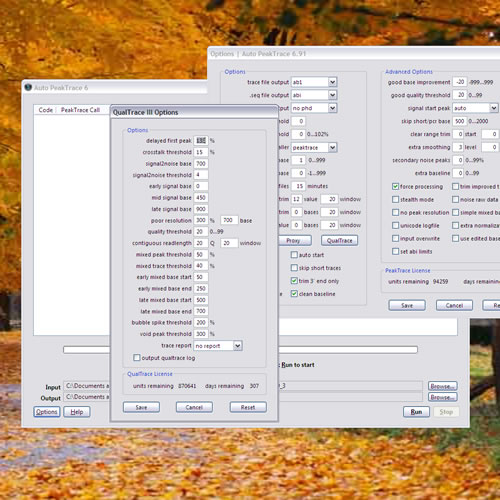
Auto LongTrace Manual
An overview of LongTrace.
How to run Auto LongTrace.
Description of the Auto LongTrace settings.
Description of the LongTrace Results for users and administrators.
Description of the Auto LongTrace processing results and Error Codes.
How to get further technical support.
Overview of LongTrace
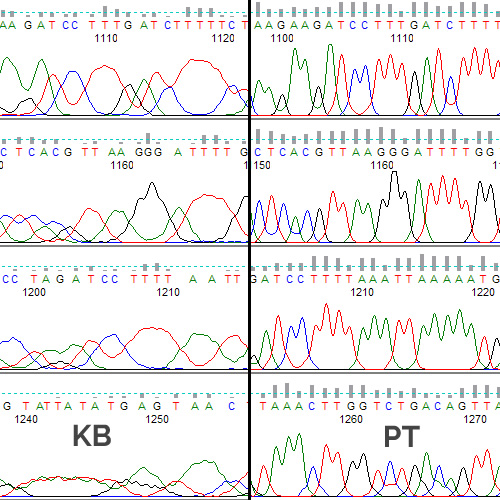
LongTrace uses a new approach to extract high quality sequence data from the poorly resolved regions of each trace. The LongTrace software extracts and reprocesses the raw data contained within each ABI trace file using a series of highly sophisticated algorithms developed by Nucleics. This data reprocessing enables the ABI KB base caller to make significantly better base and quality calls on the trace. By combining the LongTrace raw data reprocessing with the KB base caller, the LongTrace DNA sequencing software is able to provide a completely seamless and straightforward method to increase sequence read length without requiring requiring changes to sequence production protocols.
The LongTrace reprocessing can be performed any time after the trace data is collected. This allows it to be used with previously collected sequencing data sets such as partial genome sequencing projects. By applying LongTrace to the trace data from and reassembling the sequences the overall genome assembly can be significantly improved without the need to collect more sequence data. Additionally, as the output of the LongTrace software is a true ABI KB base called trace file. This means that LongTrace can be used with KB compatible downstream software applications. This feature allows LongTrace processing to be used with other base calling software such as phred or TraceTuner as required, or integrated into LIMS data workflows.
How Run Auto LongTrace
To start Auto LongTrace software either double click the Desktop icon or select "Auto LongTrace" from the Windows Start Menu.
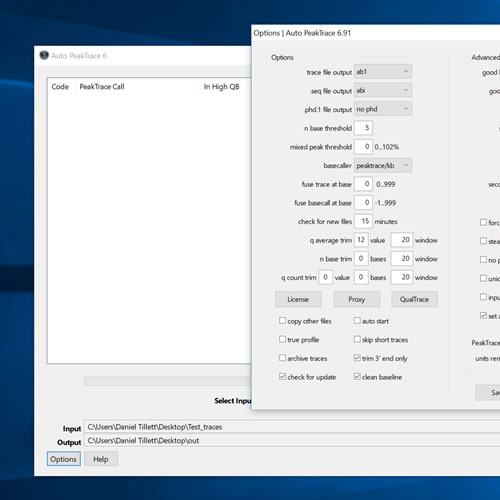
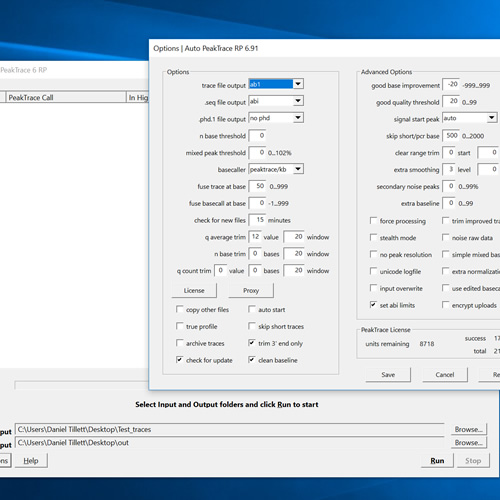
The Auto LongTrace software has four view tabs: Accounts, Status, Processing Log, and About. Extra setting can be accessed from the Advanced Settings button on the Accounts view.
To run Auto LongTrace enter at least one user account. Each user account requires an account name (Account ID) , an input directory (Input Folder), and an output directory (Output Folder). To create a new user account enter the appropriate user details into the blank fields at the bottom of the Accounts view. The input and output folder can be selected by file browsing for the appropriate locations using the folder icons located on the left. Once all details are selected the user account is created by pressing the Add Account button. The new account will be added to the Account List.
Accounts details can be modified by selecting the desired account from the Account List. Once the desired changes have been made then press the Update Account button.
Accounts may be removed by selecting the desired account from the Account List then pressing the Delete Account button.
Once at least one account has been created the program can be started by press the Run button. The program will then check for new trace files located in each of the user input folders at the frequency set by the Check Every field located under Advanced Settings. Any new traces files or of sub-folder of traces found in the user input folders are processed by the LongTrace software and the resulting files saved to the corresponding user output folders.
The program can be stopped by pressing the Stop button.
Auto LongTrace Accounts Settings
Account List
This list displays the active user accounts which the Auto LongTrace software checks for new ABI trace folders. Shown in the Account ID, Input Folder, and Output Folder.
Account ID
The name given to the user account by Auto LongTrace administrator. This is used to identify each user in the LongTrace processing summaries.
Input Folder
The name and full path of the users traces. This folder can be on the local machine (LongTrace:Box) or any computer accessible by Windows files share network (ie the ABI instrument). All traces to be processed for a user account must be located in this folder or in sub-folders within this file. Files and Folders can be in .zip format and will be uncompressed/recompressed. This option is desirable if a user is uploading their files via the internet.
Output Folder
The location where the LongTrace processed trace file are saved. The files will be saved in a folder structure that mirrors the input folder. For example, if a users input traces are located in a sub-folder named "sub123" then the output files will be found in a output sub-folder named "sub123".
Also generated is a tab delimited log file summarizing the processing results for each trace set. This log file is named by the date and time [year]-[month]-[day] [hour]-[minute]-[second].log. This log file contains the following columns: LongTrace processing date and time, input file and path, output file and path, processing result, number of Q20+ bases in the input file, number of q20+ bases in the LongTrace processed output file, increase in Q20+ bases, and percentage increase in Q20+ bases. A Q20+ base is a base which the KB scores with a quality score of 20 or higher. A quality score of 20 corresponds to an expected base call error rate of 1 in 100.
Update Account
Allows the administrator to update a users account details. Account ID, Input Folder, and Output Folder can all be modified.
Add Account
Allows the administrator to add an new users account details. The Input and Output Folders can be selected by file browsing for the appropriate locations using the folder icons located on the left of each field.
Delete Account
Allows the administrator to remove users accounts from the Account List.
Run
Starts the processing of LongTrace processing. The first check will be done immediately. The second check for new trace files occur after the elapsed time selected in the Advanced Settings. Default is 30 minutes.
Stop
Stops the processing of new traces. Processing can be restarted by pressing the Run button.
Advanced Settings
Command Line
The path to the ltcli.bat file. You should not change this field unless instructed by Nucleics support staff.
Input Queue Folder
The temporary folder used in construction of the LongTrace processing queue. You should not change this field unless instructed by Nucleics support staff.
Output Queue Folder
The temporary folder used for the output of the LongTrace processing. You should not change this field unless instructed by Nucleics support staff.
Check Frequency
The time interval which Auto LongTrace checks for new trace files in user folders or sub-folders. This can be adjusted to suit your particular need. The default is 30 minutes.
Exclude File Prefix
This field allows files that have a defined prefix from being processed by Auto LongTrace. For example, if the prefix "No_LT" is added here then any traces files with a prefix of "No_LT" (No_LT_tracefile1.ab1) will NOT be processed. This setting is useful if you wish to only LongTrace process certain trace files contained with mixed folders.
Archive Folder
The folder where the archived input and output user folders are moved after the Archive Now button is clicked. The folders are zip compressed and named using the format [Account ID]-[year]-[month]-[day].zip. If hard drive space become limited on the LongTrace:Box these archive files should be removed.
Archive Now
This button causes all traces found on the local computer to be zip compressed and moved to the archive folder. Do not use this feature while LongTrace processing is occurring.
Processing Log
This tab view displays the summary of the LongTrace processing results. The same information is written to each account user summary file.
Status
This tab view shows the current status of the Auto LongTrace program. This view is useful to see at what the Auto LongTrace program is doing and to check that the desired settings are working as expected.
LongTrace Processing Results
SUCCESS
Indicates that the traces was processed successfully by the LongTrace software and that the total exceed the minimum threshold.
UNDER MINIMUM INCREASE
Indicated that the improvement in read length offered by LongTrace was less than the Required Good Base Improvement selected in Advanced Settings. In this case the user file provided to the user is the original file. This protects the user from suffering reductions in read length if LongTrace is not able to significantly improve the trace.
WEAK OR FAILED CAPILLARY
Indicates that the trace contains no, or only very weak, peak signal in the raw data channels.
This code can have many causes including:
- No DNA template.
- Loss of sample during clean-up.
- A blocked capillary.
- Heavy sample contamination with salt or other charge ions.
The alignable Q20+ bases range from zero to less than 150 bases.
PROCESSING LICENCE EXCEEDED
Indicates that you have processed more than your licensed number of traces. Please contact Nucleics to obtain a licence upgrade.
SPECTRAL CALIBRATION
Indicates that the trace file contains significant fluorescent dye channel signal cross talk (minimum of 15% in at least one channel).
Multiple occurrences of this code for an individual instrument suggest that a machine spectral calibration should be performed.
Alignable Q20+ bases are moderate to high depending on the severity of the signal crosstalk.
MIXED OR NOISY DATA
Indicates that the trace file contains significant mixed peak signal.
This code commonly results from primer mis-annealing and/or PCR amplification in the sequencing reaction due to reverse complement annealing of the sequencing primer within 350 bases of the correct binding site.
Alignable Q20+ bases are low or moderate.
TRACE END TOO WEAK
Indicates that the trace file has a very low signal-to-noise ratio (below 10) before base 700 for 36cm arrays traces or before base 900 for 50cm arrays traces. Very low signal-to-noise values severely limits sequence read length. This code has many causes including:
- Incorrect template concentration.
- Use of excessive sequencing chemistry dilution.
- Sequencing instrument failure.
- Template contamination with salts, detergents, proteins, RNA and/or excessive non-template DNA.
Auto LongTrace Errors
The following errors may occur when attempting to process trace files. The various possible causes of these errors and their corresponding code are described together with possible solutions.
NO PROCESSED DATA IN FILE
This error may occur if the trace file is corrupt.
NO BASE ORDER IN FILE
This error may occur if the trace file is corrupt.
NOT ENOUGH MEMORY
This error may occur if too many applications are running. Close nonessential applications and restart Auto LongTrace.
CAN'T OPEN FILE
This error may occur if the file does not exists or if the file has incorrect access permission settings. Check if file exists and that you read permission to the input folder.
CAN'T CREATE FILE
This error may occur if you do not have write permission to the selected output folder or if the hard disk is full. If the hard disk is near full please remove excess files and restart Auto LongTrace.
CAN'T READ FILE
This error may occur if an open file was deleted or moved while being used by LongTrace. Do not delete or move trace files after starting Auto LongTrace.
CAN'T WRITE FILE
This error may occur if you do not have write permission to the selected output folder or if the hard disk is full. Please remove excess files and restart LongTrace and check if you have write permission to the folder selected.
INVALID FILEĀ
This code indicates a non supported trace file, for example, an ABI 3700 trace file. This error may also occur with ABI 3730 traces if the file is corrupt.
NO RAW DATA IN FILE
This error may occur if the trace file is corrupt.
PROCESS WAS ABORTED
This error will occur if a LongTrace sub-process is stopped explicitly. Do not stop the LongTrace sub-processes.
PROCESSING TOOK TOO LONG
This error occurs if the trace cannot be analyzed within one minute. This error indicates a program malfunction. Please contact Nucleics.
PROGRAM ERROR
This error indicates a program malfunction. Please contact Nucleics.
LICENCED EXPIRED
This error indicated that your machine licence has expired. Please contact Nucleics to obtain a new licence.
Technical Support
Nucleics provides expert technical support for the Auto LongTrace software.
Please address any questions or comments to or visit our Auto LongTrace forum.