• Skip to main content
  • Skip to primary sidebar

Nucleics

  • PeakTrace
    • About PeakTrace
    • PeakTrace Online
    • PeakTrace Online Pro
    • PeakTrace 6
    • PeakTrace:Box
    • PeakTrace RP
    • PeakTrace for Chromas
    • Buy PeakTrace
    • Why use PeakTrace?
    • Validation of PeakTrace
    • PeakTrace FAQ
    • PeakTrace In Depth
  • DNA Sequencing Products
    • PeakTrace Basecaller
    • PeakTrace:Box
    • PeakTrace RP
    • PeakTrace for Chromas
    • QualTrace
    • LongTrace
    • CounterTrace
    • dLUTE SEQ
    • UniSeq
    • ASIN
  • Support & Services
    • PeakTrace Online Pro Registration
    • QualTrace III Online
    • DNA Sequencing Troubleshooting Guide
    • PeakTrace RP Downloads
    • PeakTrace:Box Downloads
    • Trace Viewers
    • User Manuals
    • Help Guides
      • How to Install Auto PeakTrace 6
      • How to Upgrade to Auto PeakTrace 6
      • How to Update the PeakTrace License on Linux
      • How to Generate a cmDust File
      • Online Activation of Auto PeakTrace 6
      • Auto PeakTrace 6 Online Activation Guide
      • DNA Sequencing Protocols
        • DNA Sequencing Protocol Tips
        • Exonuclease I – Shrimp Alkaline Phosphatase Clean Up of PCR Products
        • Tris EDTA DNA Sequencing Resuspension Buffer
        • DNA Sequencing Reaction Clean-up using Phenol & Butanol
    • DNA Sequencing Service Reviews
    • Software Downloads
    • MSDS
    • Services
      • Genomics Sequencing
      • Bioinformatics
  • Forum
    • Register
    • Login
    • PeakTrace Basecaller Forum
    • PeakTrace:Box Forum
    • Auto PeakTrace RP Forum
    • QualTrace Forum
    • DNA Sequencing Forum
    • DNA Sequencing Software
    • PCR Forum
    • DNA Isolation Forum
    • LongTrace Forum
    • dLUTE SEQ Forum
  • About
    • Contact
    • News
    • Jobs
    • Nucleics Privacy Policy
Buy PeakTrace

In Depth: Archive Traces

April 26, 2019 By Samuel

A problem that may be encountered when using Auto PeakTrace™, is reprocessing traces that have not been moved from the input folder since PeakTrace was restarted.

This can be avoided by using the archive traces options. When selected, archive traces automatically moves all input trace files into a sub-folder of the Input folder called “archive” after they have been processed (Figure 1). This option is off by default, but can be selected using the Auto PeakTrace options menu.
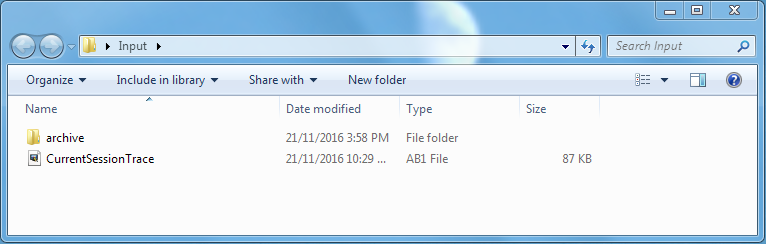
Windows Explorer showing the Input folder with an archive sub-folder and a current trace file
Figure 1. An example input folder. Note the archive folder, which will store all previously run traces and prevent them from being reprocessed during a new run.


Auto PeakTrace does not look for new files located any deeper than one directory within the Input folder. This means that any .ab1 files that are not within the Input folder, or within a sub-folder of the Input folder, will not be processed by Auto PeakTrace during a run. This means that archived traces, which are stored two directories beneath the Input folder, are not processed again (Figure 2).
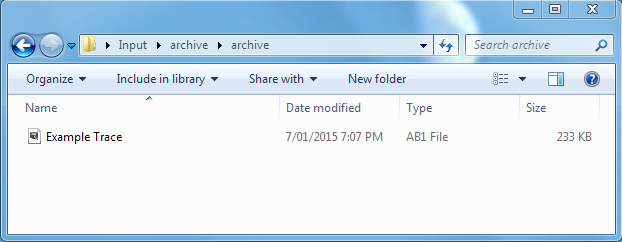
Windows Explorer inside the archive folder, two levels below the Input folder, holding an example trace
Figure 2. Inside the archive folder. Note that the traces are stored two directories beneath the Input folder.

Pitfalls with Archive Traces

  • All traces will be moved to the archive folder located within the folder of origin, not a single archive folder.  This means that trace files located within sub-folders of the input folder will be moved to an archive folder within that particular sub-folder after processing.


Filed Under: In Depth, PeakTrace Tagged With: archive, archive traces, peaktrace

Primary Sidebar

DNA Sequencing Help

We have added a guide on troubleshooting automated DNA sequencing problems.

DNA Sequencing Service Facilities Reviews

Please see our review of 325 DNA sequencing core facilities and commercial services for more information on selecting the right sequencing service for your needs.

QualTrace III Online

Try the free online version of the QualTrace DNA sequencing QC software and see how real time quality control tracking can improve your read lengths and lower sequencing failure rates.

Contact Details

email. information@nucleics.com
phone. +61 3 9016 9373
  • home
  • peaktrace
  • software & reagents
  • forum
  • tools
  • services
  • support
  • about

Nucleics

Sanger Seqencing Software

©Nucleics 1999 - 2026