• Skip to main content
  • Skip to primary sidebar

Nucleics

  • PeakTrace
    • About PeakTrace
    • PeakTrace Online
    • PeakTrace Online Pro
    • Online Pro for RP customers
    • PeakTrace 6
    • PeakTrace:Box
    • PeakTrace RP
    • PeakTrace for Chromas
    • Buy PeakTrace
    • Why use PeakTrace?
    • Validation of PeakTrace
    • PeakTrace FAQ
    • PeakTrace In Depth
  • DNA Sequencing Products
    • PeakTrace Basecaller
    • PeakTrace:Box
    • PeakTrace RP
    • PeakTrace for Chromas
    • QualTrace
    • LongTrace
    • CounterTrace
    • dLUTE SEQ
    • UniSeq
    • ASIN
  • Support & Services
    • PeakTrace Online Pro Registration
    • QualTrace III Online
    • DNA Sequencing Troubleshooting Guide
    • PeakTrace RP Downloads
    • PeakTrace:Box Downloads
    • Trace Viewers
    • User Manuals
    • Help Guides
      • How to Install Auto PeakTrace 6
      • How to Upgrade to Auto PeakTrace 6
      • How to Update the PeakTrace License on Linux
      • How to Generate a cmDust File
      • Online Activation of Auto PeakTrace 6
      • Auto PeakTrace 6 Online Activation Guide
      • DNA Sequencing Protocols
        • DNA Sequencing Protocol Tips
        • Exonuclease I – Shrimp Alkaline Phosphatase Clean Up of PCR Products
        • Tris EDTA DNA Sequencing Resuspension Buffer
        • DNA Sequencing Reaction Clean-up using Phenol & Butanol
    • DNA Sequencing Service Reviews
    • Software Downloads
    • MSDS
    • Services
      • Genomics Sequencing
      • Bioinformatics
  • Forum
    • Register
    • Login
    • PeakTrace Basecaller Forum
    • PeakTrace:Box Forum
    • Auto PeakTrace RP Forum
    • QualTrace Forum
    • DNA Sequencing Forum
    • DNA Sequencing Software
    • PCR Forum
    • DNA Isolation Forum
    • LongTrace Forum
    • dLUTE SEQ Forum
  • About
    • Contact
    • News
    • Jobs
    • Nucleics Privacy Policy
Buy PeakTrace

Grace

In Depth: Auto Start

May 1, 2019 By Grace

Auto PeakTrace RP 6.93 Overview

Under the default settings, Auto PeakTrace 6 will only start to process trace files after the user has manually clicked the Run button on the main window. If the auto start option is checked then Auto PeakTrace will automatically begin processing of the trace files as soon as Auto PeakTrace is started.

This auto start option is useful if you would like Auto PeakTrace to automatically begin processing after restarting your computer in an unattended situation (i.e. server). Windows allows Auto PeakTrace 6 to be started when the computer boots through Task Scheduler (Windows 7 and greater) or Scheduled Task (Windows XP)Applications. When used alongside the auto start option it is possible to automate the unattended processing of traces.

To use these set-up, open Task Scheduler or Scheduled Task, then choose Create Basic Task from the Action menu (Task Scheduler) or double click on the Add scheduled task (Scheduled Task). This will open the respective wizards.

Windows 7 and greater automatic starting of Auto PeakTrace 6 using the Task Scheduler Wizard

  1. With the Create Basic Task Wizard name the task (e.g. Start Auto PeakTrace 6) and then press Next.
  2. Choose the Trigger when the computer starts and press Next.
  3. Click Browse and find Auto PeakTrace 6.exe. It should be located in the Program files (x86)> Auto Peaktrace 6 folder. Click on Auto PeakTrace 6.exe and press Open then Next.
  4. Check that everything is OK in the Summary page before pressing Finish.

Windows XP automatic starting of Auto PeakTrace 6 using Scheduled Task Wizard

  1. Click Next on the Scheduled Tasks Wizard.
  2. Click on Browse and find Auto PeakTrace 6.exe. It should be located in the Program files > Auto Peaktrace 6 folder. Click on Auto PeakTrace 6.exe and press Open then Next.
  3. Choose a name for the task and then choose When my computer starts before pressing Next.
  4. Enter the user name and password and then press Next.
  5. Press Finish.

Possible Pitfalls

This option requires that the input and output folders have been previously selected and saved for the run to start automatically. Caution should be used with this setting as the automated run uses the parameters set from the last save, which if they are unsuitable may result in processing that may not be optimal for the user. Also if input files are not cleared from the input folder before restart then they will be processed again. For this reason it is recommended that the archive traces options is also selected.
Filed Under: In Depth, PeakTrace, PeakTrace RP

In Depth: Skip Short Traces

December 5, 2016 By Grace

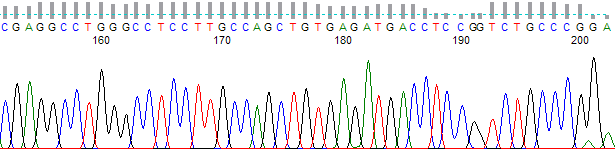
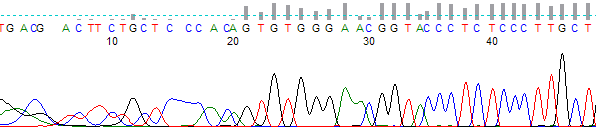
PeakTrace-processed short trace from bases 155 to 202

The skip short traces option allows PeakTrace 6™ to skip over traces that have less than a certain number of bases and which may not be improved by PeakTrace. This setting is useful because the KB Basecaller typically basecalls short read  DNA sequence well and hence the improvement from using PeakTrace can be minimal. By using this setting users can avoid having to manually preselect the traces for PeakTrace basecalling, a time consuming and often inaccurate step.

This function is aimed at users who are only interested in improving longer runs, or would like to avoid having to manually preselect the traces that will see the most improvement from PeakTrace. The reads below the set read length are skipped over and the cost of using PeakTrace avoided on these traces.

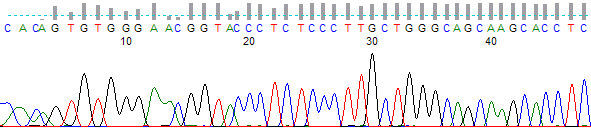
When using this function, trim settings, noise raw data and stealth mode will all still be applied to the short trace at no charge (Figures 1 & 2). If it is desired that trimming is not performed on the short traces then the trim improved traces only function should be selected. Trim improved traces only will apply the trimming to the PeakTrace processed traces only and not to the short traces skipped over.

Figure 1. KB basecalled short trace before processing
Figure 2. Trace skipped by Auto PeakTrace 6. Note that this trace has had trimming applied, however the rest of the trace is identical to the original file

Potential Pitfalls with using Skip Short Traces

If the skip short/pcr base option is set above 500 bases then traces that could have been improved will be charged. A setting lower than 500 will allow more traces to be processed and the functionality of the skip short traces option will remain on, however a setting of 0 in the skip short/pcr base option will effectively turn skip short traces off, as processing will be attempted for all traces with more than 0 bases.

If this setting is used with those settings that improve the KB traces (i.e.  clean baseline, extra normalization, and extra baseline) then PeakTrace will improve the KB trace and this will become a charged trace. To avoid this, set the basecaller to peaktrace and/or unselect any of KB improving settings.

Filed Under: In Depth, PeakTrace, PeakTrace RP

In Depth: Noise Raw Data

November 21, 2016 By Grace

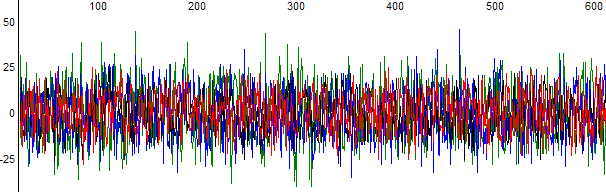
Raw data containing only low-level noise in all four dye channels

A question we occasionally get asked is how to prevent users from accidentally reprocessing traces if they open them in Sequence Analysis. Since PeakTrace does not change the raw data in the .ab1 file by default, it is possible to reprocess the trace files through the KB™ or the ABI Basecaller again. This will regenerate the original pre-PeakTrace trace, thus losing the PeakTrace sequence. This problem can be avoided by using the Noise Raw Data option.

The Noise Raw Data setting replaces the raw data channels with a random signal that prevents the accidental reprocessing of traces by KB or the ABI Basecaller. 

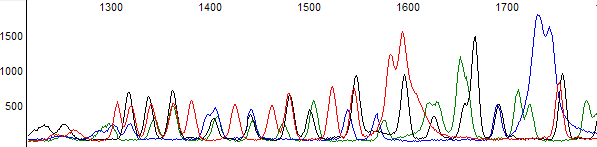
Figure 1 shows an example of the normal raw data channels contained within a .ab1 trace file. Figure 2 shows the raw data of the same trace after using the Noise Raw Data setting. Attempting to re-basecall the .ab1 file using KB will result in a KB processing error, thus preventing the PeakTrace basecalls and peaks from being lost.


Figure 1. Raw Data visualized in FinchTV
Figure 1. Example of raw data channels contained within a .ab1 trace file.


Figure 1. Raw data visualized in Finch Tv after the application of th Noise Raw Data Functin
Figure 2. Example of the raw data channel of use of Noise Raw Data setting.

It is strongly recommended that if this setting is used that the original .ab1 files are kept, since in the event that the KB version of the trace file is required, there is no way to recover it once this option has been applied. This setting is off by default.


Filed Under: In Depth, PeakTrace, PeakTrace RP

Primary Sidebar

DNA Sequencing Help

We have added a guide on troubleshooting automated DNA sequencing problems.

DNA Sequencing Service Facilities Reviews

Please see our review of 325 DNA sequencing core facilities and commercial services for more information on selecting the right sequencing service for your needs.

QualTrace III Online

Try the free online version of the QualTrace DNA sequencing QC software and see how real time quality control tracking can improve your read lengths and lower sequencing failure rates.

Contact Details

email. information@nucleics.com
phone. +61 489 152 658
  • home
  • peaktrace
  • software & reagents
  • forum
  • tools
  • services
  • support
  • about

Nucleics

Sanger Sequencing Software

Already have RP units? Run batches in your browser with PeakTrace Online Pro.

©Nucleics 1999 - 2026