• Skip to main content
  • Skip to primary sidebar

Nucleics

  • PeakTrace
    • About PeakTrace
    • PeakTrace Online
    • PeakTrace Online Pro
    • Online Pro for RP customers
    • PeakTrace 6
    • PeakTrace:Box
    • PeakTrace RP
    • PeakTrace for Chromas
    • Buy PeakTrace
    • Why use PeakTrace?
    • Validation of PeakTrace
    • PeakTrace FAQ
    • PeakTrace In Depth
  • DNA Sequencing Products
    • PeakTrace Basecaller
    • PeakTrace:Box
    • PeakTrace RP
    • PeakTrace for Chromas
    • QualTrace
    • LongTrace
    • CounterTrace
    • dLUTE SEQ
    • UniSeq
    • ASIN
  • Support & Services
    • PeakTrace Online Pro Registration
    • QualTrace III Online
    • DNA Sequencing Troubleshooting Guide
    • PeakTrace RP Downloads
    • PeakTrace:Box Downloads
    • Trace Viewers
    • User Manuals
    • Help Guides
      • How to Install Auto PeakTrace 6
      • How to Upgrade to Auto PeakTrace 6
      • How to Update the PeakTrace License on Linux
      • How to Generate a cmDust File
      • Online Activation of Auto PeakTrace 6
      • Auto PeakTrace 6 Online Activation Guide
      • DNA Sequencing Protocols
        • DNA Sequencing Protocol Tips
        • Exonuclease I – Shrimp Alkaline Phosphatase Clean Up of PCR Products
        • Tris EDTA DNA Sequencing Resuspension Buffer
        • DNA Sequencing Reaction Clean-up using Phenol & Butanol
    • DNA Sequencing Service Reviews
    • Software Downloads
    • MSDS
    • Services
      • Genomics Sequencing
      • Bioinformatics
  • Forum
    • Register
    • Login
    • PeakTrace Basecaller Forum
    • PeakTrace:Box Forum
    • Auto PeakTrace RP Forum
    • QualTrace Forum
    • DNA Sequencing Forum
    • DNA Sequencing Software
    • PCR Forum
    • DNA Isolation Forum
    • LongTrace Forum
    • dLUTE SEQ Forum
  • About
    • Contact
    • News
    • Jobs
    • Nucleics Privacy Policy
Buy PeakTrace

Daniel

How to Upgrade to PeakTrace 5.90

June 5, 2015 By Daniel

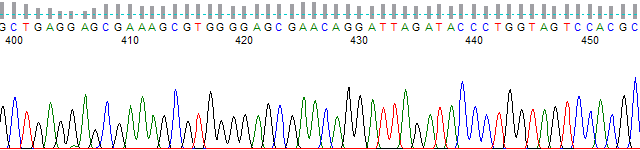
PeakTrace-processed chromatogram from bases 400 to 450

If you want to upgrade to the PeakTrace 5.90 series (the most recent release in this series is 5.92) there are a few steps that you need to do first.

  1. Check if you are running a version of PeakTrace prior to 5.70. The version number is shown at the top of the options window of Auto PeakTrace or use peaktrace -v if you are using the PeakTrace command line version. If your version is after 5.70 (or you are using Auto PeakTrace RP)  then you can skip straight to Step 7.
  2. If you are running a version of PeakTrace before 5.70 then you will need to obtain a free update for your license. You will need to generate a license request file and email it to Nucleics (or your local supplier). Nucleics will update the license and send it back to you. If you have received a license update since April 2015 then you can also skip this step.
  3. Update your CodeMeter Runtime to the latest version (6.30 as of July 2016).
  4. Update the PeakTrace USB Key Firmware to the latest version (2.04 as of July 2016).
  5. Update the PeakTrace USB Key Time.
  6. Install the updated license file you have received from Nucleics (or your local supplier).
  7. Download the latest version of Auto PeakTrace (or peaktrace for linux) from the Nucleics Downloads page. You will need a password to access the downloads page which will be supplied to you with the updated license file.
  8. Install Auto PeakTrace by double clicking on the installer and following the prompts.
  9. Once installed check the Auto PeakTrace Option settings. It is a good idea to also read through the supplied help manual as there are new features and changes that will likely be of interest to you. If you are unsure of what settings to use then just use the defaults and/or get in contact with Nucleics (or your local supplier) for advice on what is best for your needs.

Filed Under: How-to, linux, PeakTrace, windows

Auto PeakTrace 5.90 Released

June 5, 2015 By Daniel

We have released Auto PeakTrace 5.90 (the Auto PeakTrace:Box version). This is a major update that supports many new run conditions and includes improved base calling for many previously supported run conditions. Both the Windows and Linux versions are available on our Download page. If you are currently running a version of PeakTrace before 5.70 you will need an update to your current license. Please contact Nucleics or your local supplier to obtain the free license update.

  • New Feature. Support added for the following run conditions:
    • ABI 3500 Ultra Rapid Run POP 7 BigDye 3
    • ABI 3500 Ultra Rapid Run POP7 BigDye 1
    • ABI 3500 POP 6 BigDye 3
    • ABI 3500 Ultra Rapid Run POP 6 BigDye 3
    • ABI 3500 Ultra Rapid Run POP 6 BigDye 1
    • ABI 3100/3730 POP 7 BigDye 1 (11 to 12.5 kV)
    • ABI 3100/3730 POP 7 BigDye 1 (11 to 12.5 kV)
    • ABI 3100/3730 POP 4 Rapid BigDye 3
    • ABI 3100/3730 POP 4 Rapid BigDye 1
    • ABI 310 30cm array POP 4 Rapid BigDye 1
    • ABI 310 30cm array POP 6 Rapid BigDye 3
    • ABI 310 30cm array POP 6 Rapid BigDye 1
    • ABI 310 36cm array POP 6 Rapid BigDye 3
    • ABI 310 36cm array POP 6 Rapid BigDye 1
    • ABI 310 50cm array POP 6 Rapid BigDye 3
    • ABI 3730 36cm array POP 7 ET
  • New Feature. New error condition: No raw peak data
  • New Feature. A new warning when the software becomes obsolete.
  • New Feature. Build date of Auto PeakTrace is now shown on the Licensing Code Window.
  • New Feature. -ha switch which limits simultaneous access to USB Key (command line only).
  • Improved support for ABI 310, ABI 3500 and MegaBACE traces.
  • Improved basecalling and trace processing.
  • Many bug fixes and improvements.

Filed Under: linux, New Release, PeakTrace, windows

Auto PeakTrace RP 5.90 Released

June 4, 2015 By Daniel

A major update for Auto PeakTrace RP. This version brings a number of changes and improvements and is definitely worth updating to if you are running any earlier version. Auto PeakTrace RP 5.90 can be downloaded from the downloads page. If you are running a recent version of Auto PeakTrace RP you should also be prompted to install the latest version at some point in the next week.

The major changes in this release are:

  • New Feature. Support added for the following run conditions:
    • ABI 3500 Ultra Rapid Run POP 7 BigDye 3
    • ABI 3500 Ultra Rapid Run POP7 BigDye 1
    • ABI 3500 POP 6 BigDye 3
    • ABI 3500 Ultra Rapid Run POP 6 BigDye 3
    • ABI 3500 Ultra Rapid Run POP 6 BigDye 1
    • ABI 3100/3730 POP 7 BigDye 1 (11 to 12.5 kV)
    • ABI 3100/3730 POP 7 BigDye 1 (11 to 12.5 kV)
    • ABI 3100/3730 POP 4 Rapid BigDye 3
    • ABI 3100/3730 POP 4 Rapid BigDye 1
    • ABI 310 30cm array POP 4 Rapid BigDye 1
    • ABI 310 30cm array POP 6 Rapid BigDye 3
    • ABI 310 30cm array POP 6 Rapid BigDye 1
    • ABI 310 36cm array POP 6 Rapid BigDye 3
    • ABI 310 36cm array POP 6 Rapid BigDye 1
    • ABI 310 50cm array POP 6 Rapid BigDye 3
    • ABI 3730 36cm array POP 7 ET
  • New Feature. New error condition: No raw peak data
  • Improved support for ABI 310, ABI 3500 and MegaBACE traces.
  • Improved basecalling and trace processing.
  • Many bug fixes and improvements.

Filed Under: New Release, PeakTrace RP

How to generate the PeakTrace License request file

May 19, 2015 By Daniel

CodeMeter Control Center showing the PeakTrace USB key and the License Update button

The process for generating a PeakTrace License Request File is straightforward. It can be done as many times as required without affecting your license, however each time a license request file is generated it invalidates all past request files. If you are asked to provide a PeakTrace license request file please make sure you generate a new file and send this. Please do not send an old request file since once a new license file is created the old file becomes inactive.

1. Open the CodeMeter Control Center from Run > All Programs > CodeMeter. Please make sure that the PeakTrace USB Key supplied by Nucleics is plugged into your computer.

CodeMeter Control Center showing the PeakTrace USB key and the License Update button

2. Click on the License Tab and then click on the License Update button.

CmFAS Assistant welcome page

3. This will open the CmFAS Assistant. This allows you to generate a license upgrade request file to send to Nucleics or your local supplier. Press Next.

CmFAS Assistant with Create license request selected

4. Select Create license request and press Next.

CmFAS Assistant with Extend existing license selected

5. Select Extend existing license and press Next.

CmFAS Assistant producer list with Nucleics Pty Ltd selected

6. Make sure that Nucleics is selected as the producer and press Next.

CmFAS Assistant showing the request file name and path, with a Commit button6. Choose the file name and location to save the request file. The default values should normally be fine. Just make sure to note where you have saved the request file before pressing Commit.

CmFAS Assistant confirming the license request file was created, with a Finish button

7. Press Finish.

Folder with the new license request file (green up arrow) circled

8. Open the folder where you saved the PeakTrace request file. You now need to email this file (circled) to Nucleics or your local supplier. Note that the file you need to send has a green up arrow.

Folder showing the license request file (green up arrow) and the circled license update file (green down arrow)

9. Nucleics will generate an update file and email it to you or your local supplier. Save the update file in a suitable location. Note that the update file will have a green down arrow (see circled file above) and the name will end in a U.

Please see how to update your PeakTrace license to add the new license to your USB Key.

Filed Under: How-to, PeakTrace

How to update the PeakTrace USB Key Firmware

May 7, 2015 By Daniel

CodeMeter Control Center with the firmware update icon circled

This is simple to do once you know how. The process is shown step-by-step below:

1. Open the CodeMeter Control Center from Run > All Programs > CodeMeter. Please make sure that the USB Key supplied by Nucleics is plugged into your computer.

CodeMeter Control Center with the firmware update icon circled

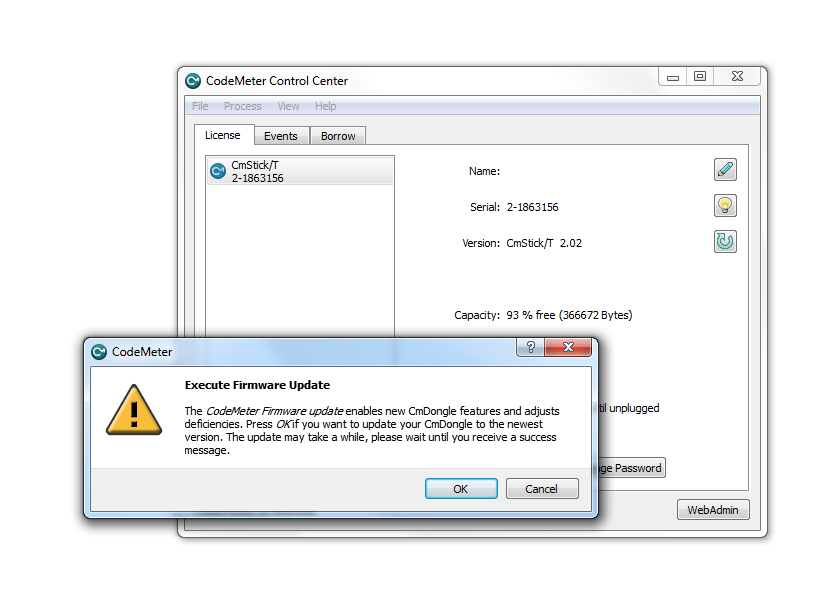
2. Click on the circled arrow icon. The CmStick/T firmware version should be 2.02.

CodeMeter Execute Firmware Update dialog with OK and Cancel buttons

3. Press OK to Execute the Firmware Update. This will take some time. If an error occurs check that you have Internet access on computer. If you don’t then move the USB Key to a computer that has Internet access.

CodeMeter Control Center with the updated firmware version, CmStick/T 2.04, circled

4.The firmware version should now be updated to 2.04 or higher.

Filed Under: How-to, linux, PeakTrace, windows

Auto PeakTrace RP 5.83 Released

May 1, 2015 By Daniel

Just a minor update to correct a rare bug with input or output folders that contain unicode characters (non-English letters). The automated system should inform you of the update, but if you want to install it manually then the updates (for both Windows and MacOS X) are available on the Nucleics Downloads page as usual.

Filed Under: New Release, PeakTrace RP

Auto PeakTrace RP 5.82 Released

April 27, 2015 By Daniel

We have released a minor update for Auto PeakTrace RP (5.82) that fixes a problem with slow network transfers. It is recommended that all users upgrade to this version. It is available through the automatic update system, but if you wish to install manually it is also available from our downloads page.

Filed Under: New Release, PeakTrace RP

Auto PeakTrace RP 5.81 MacOSX Released

April 17, 2015 By Daniel

Auto PeakTrace RP running on Mac OS X, with empty results and the input and output folder fields

Auto PeakTrace RP running on Mac OS X, with empty results and the input and output folder fieldsWe have released the Mac OS X version of Auto PeakTrace RP 5.81. This is not a true port of Auto PeakTrace RP to the Mac OS X system, but simply a wine wrapper around the Windows version. While it works well, it will not look like a true Mac OS X program. It is available from our downloads page.

Filed Under: New Release, news, PeakTrace RP

Auto PeakTrace 5.81 Released

April 10, 2015 By Daniel

Auto PeakTrace 5.81 has been released for both Windows and Linux. This release improves the robustness of PeakTrace to processing, especially when used with remote directories. It is highly recommended that all Auto PeakTrace users upgrade to the version. If you are currently using a version prior to 5.70 you will need to contact us or your local supplier to obtain a license update before upgrading.

The full list of changes for 5.81 are:

  • New Feature. The peakTrace.exe version can now create the required sub-folders when the “mirror directory structure in output” option is selected.
  • New Feature. Traces that cause a recoverable crash are copied to the output folder into a sub-folder called “crash”.
  • Improved robustness when using slow or unreliable networks and/or remote shared drives.
  • Input and Output paths of up to 4096 characters now supported (command line version only).
  • TraceTuner basecalling now an optional extra install.
  • Slightly faster processing (~5%).
  • Bug fixes and help manual updates.

This update can be obtained from our downloads page and if you are using a version of Auto PeakTrace after 5.70 the automatic update should let you know an update is available. You will need to update the CodeMeter runtime (5.21) and firmware (2.04) to the latest to use 5.81. The instructions for doing this are in the latest Auto PeakTrace Help Manual.

Filed Under: New Release, news, PeakTrace

Auto PeakTrace RP 5.81 Released

April 10, 2015 By Daniel

Auto PeakTrace RP 5.81 has been released. Most of the changes with this release are on the server side and so will be available no matter which version of Auto PeakTrace RP you are using, however, we do recommend everyone update to this version as it offers increased robustness when used with slow or unreliable networks. The changes and improvements in this release are:

  • Improved robustness when using slow or unreliable networks and/or remote shared drives.
  • Bug fixes and help manual updates.

This update is available from the Nucleics downloads page. Auto PeakTrace RP should also notify you that an update is available for download.

Filed Under: New Release, news, PeakTrace RP

  • « Go to Previous Page
  • Page 1
  • Interim pages omitted …
  • Page 13
  • Page 14
  • Page 15
  • Page 16
  • Page 17
  • Interim pages omitted …
  • Page 22
  • Go to Next Page »

Primary Sidebar

DNA Sequencing Help

We have added a guide on troubleshooting automated DNA sequencing problems.

DNA Sequencing Service Facilities Reviews

Please see our review of 325 DNA sequencing core facilities and commercial services for more information on selecting the right sequencing service for your needs.

QualTrace III Online

Try the free online version of the QualTrace DNA sequencing QC software and see how real time quality control tracking can improve your read lengths and lower sequencing failure rates.

Contact Details

email. information@nucleics.com
phone. +61 489 152 658
  • home
  • peaktrace
  • software & reagents
  • forum
  • tools
  • services
  • support
  • about

Nucleics

Sanger Sequencing Software

Already have RP units? Run batches in your browser with PeakTrace Online Pro.

©Nucleics 1999 - 2026