• Skip to main content
  • Skip to primary sidebar

Nucleics

  • PeakTrace
    • About PeakTrace
    • PeakTrace Online
    • PeakTrace Online Pro
    • PeakTrace 6
    • PeakTrace:Box
    • PeakTrace RP
    • PeakTrace for Chromas
    • Buy PeakTrace
    • Why use PeakTrace?
    • Validation of PeakTrace
    • PeakTrace FAQ
    • PeakTrace In Depth
  • DNA Sequencing Products
    • PeakTrace Basecaller
    • PeakTrace:Box
    • PeakTrace RP
    • PeakTrace for Chromas
    • QualTrace
    • LongTrace
    • CounterTrace
    • dLUTE SEQ
    • UniSeq
    • ASIN
  • Support & Services
    • PeakTrace Online Pro Registration
    • QualTrace III Online
    • DNA Sequencing Troubleshooting Guide
    • PeakTrace RP Downloads
    • PeakTrace:Box Downloads
    • Trace Viewers
    • User Manuals
    • Help Guides
      • How to Install Auto PeakTrace 6
      • How to Upgrade to Auto PeakTrace 6
      • How to Update the PeakTrace License on Linux
      • How to Generate a cmDust File
      • Online Activation of Auto PeakTrace 6
      • Auto PeakTrace 6 Online Activation Guide
      • DNA Sequencing Protocols
        • DNA Sequencing Protocol Tips
        • Exonuclease I – Shrimp Alkaline Phosphatase Clean Up of PCR Products
        • Tris EDTA DNA Sequencing Resuspension Buffer
        • DNA Sequencing Reaction Clean-up using Phenol & Butanol
    • DNA Sequencing Service Reviews
    • Software Downloads
    • MSDS
    • Services
      • Genomics Sequencing
      • Bioinformatics
  • Forum
    • Register
    • Login
    • PeakTrace Basecaller Forum
    • PeakTrace:Box Forum
    • Auto PeakTrace RP Forum
    • QualTrace Forum
    • DNA Sequencing Forum
    • DNA Sequencing Software
    • PCR Forum
    • DNA Isolation Forum
    • LongTrace Forum
    • dLUTE SEQ Forum
  • About
    • Contact
    • News
    • Jobs
    • Nucleics Privacy Policy
Buy PeakTrace

Daniel

In depth look at PeakTrace 6

May 10, 2026 By Daniel

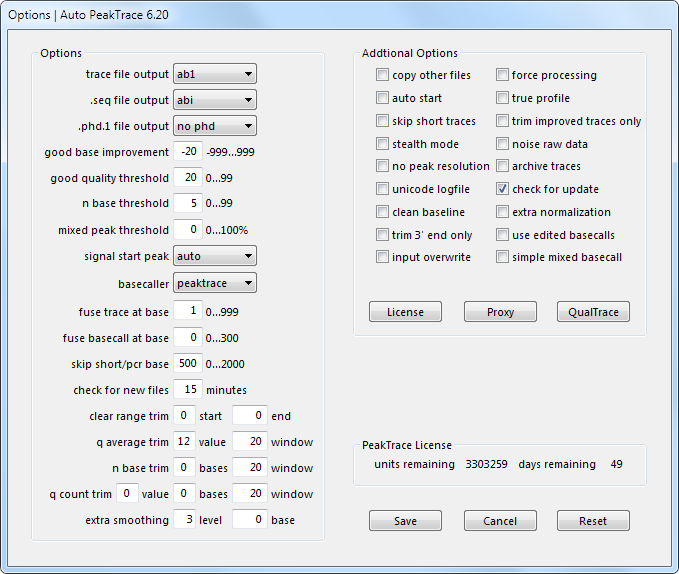
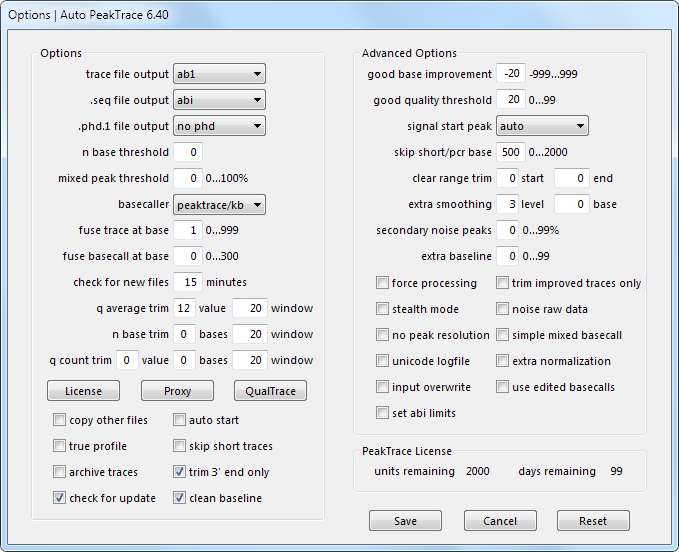
Auto PeakTrace 6.40 Options Window

PeakTrace: Simply better basecalling, beside a blue DNA sequencer

PeakTrace 6 (Auto PeakTrace 6, Auto PeakTrace 6 RP and the Linux PeakTrace 6) has a number of very powerful options that may not have been explored by many users of older versions of PeakTrace. We understand that most of our customers are busy running a sequencing facility and so don’t always have the time to look into each new PeakTrace feature on release. To help we have created a series of posts looking in depth at what these new options do, how they can best be used, and how they can help our customers make the most of PeakTrace.
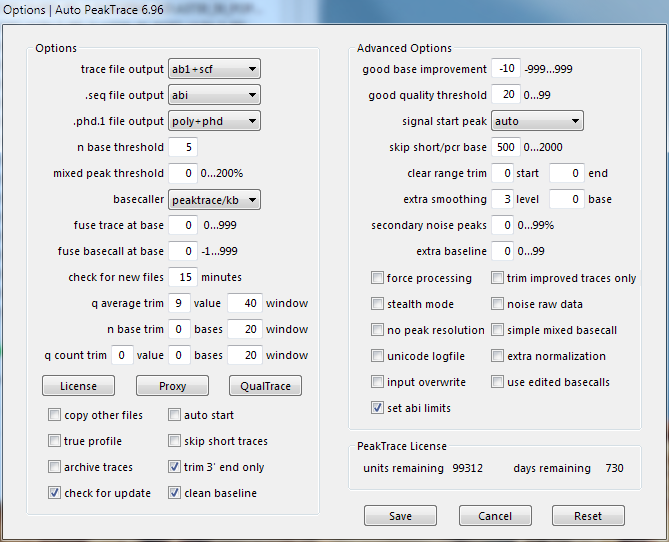
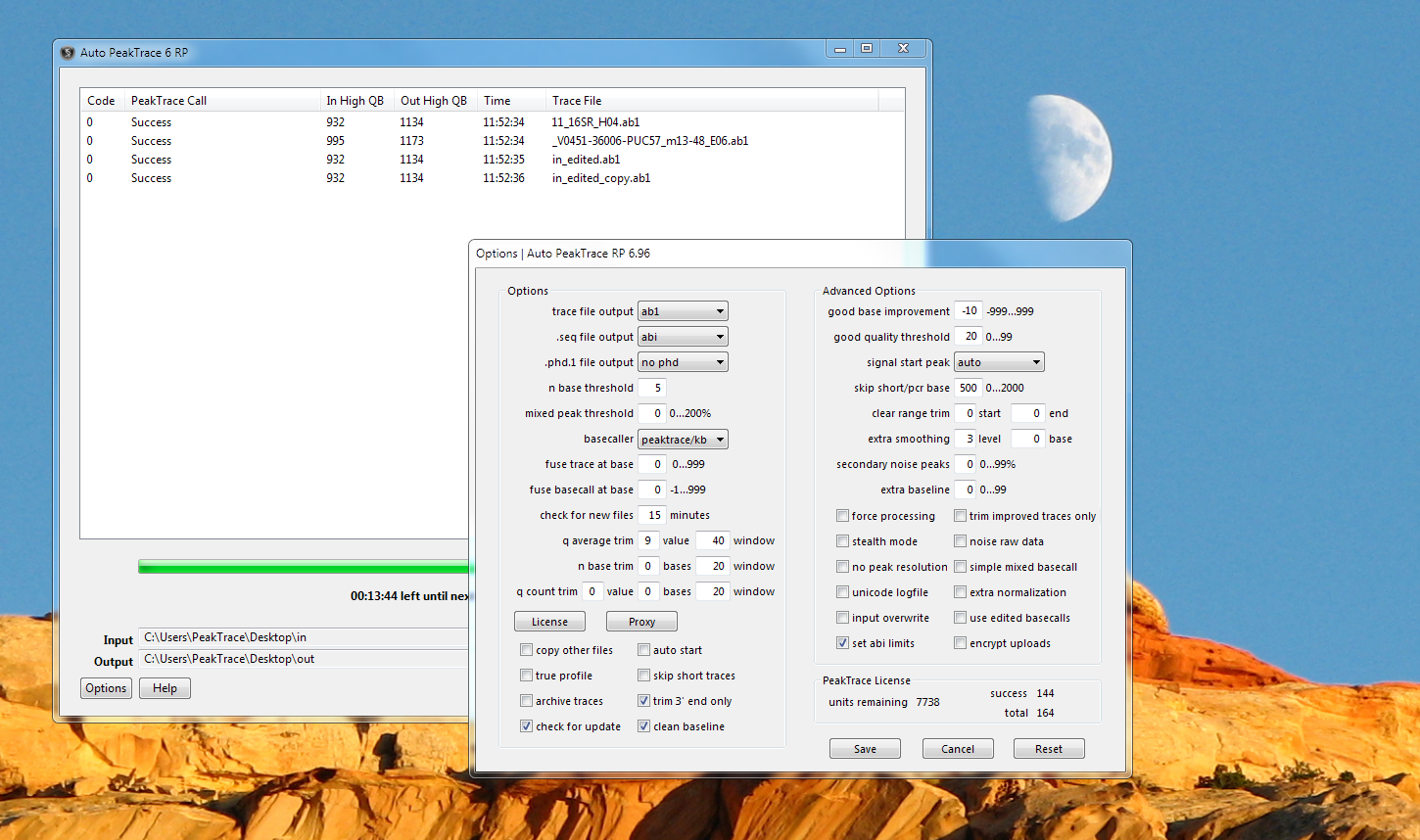
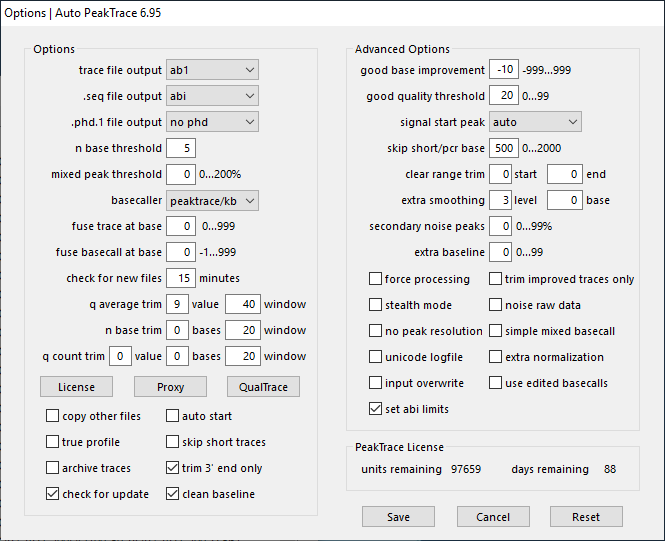
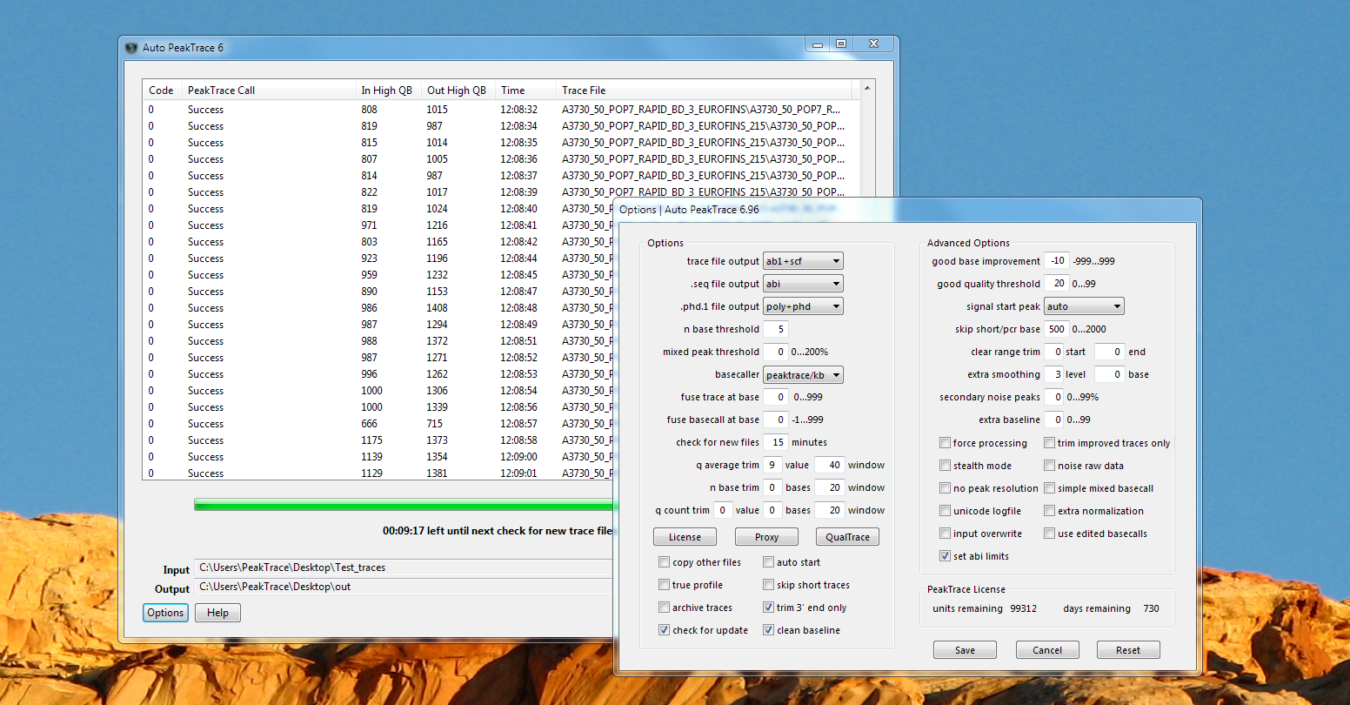
Options window of Auto PeakTrace 6.96, with the basic and advanced options and the license units and days remaining
Auto PeakTrace 6.96 Options

The PeakTrace options covered in depth include:

  • Clean Baseline
  • Automatic Bubble Spike Removal
  • Extra Normalization
  • Extra Smoothing Part I
  • Extra Smoothing Part II
  • Trim 3′ End Only
  • Mixed Basecalling and Simple Mixed Basecalling
  • Picket Fence Trace Basecalling
  • Trace Reports
  • Clean Baseline
  • PCR Trim Base
  • Extra Baseline
  • Secondary Noise Peaks
  • Set ABI Limits
  • Use Edited Basecalls
  • Skip Short Traces
  • PeakTrace Basecalling with KB Fallback
  • Fuse Trace and Fuse Basecall
  • No Peak Resolution
  • Q Average Trace Trimming
  • Input Overwrite
  • True Profile
  • Clear Range Trim
  • Force Processing
  • Trim Improved Traces Only
  • Stealth Mode
  • Noise Raw Data
  • Mixed Peak Threshold over 100%
  • Unicode Logfile
  • Archive Traces
  • Auto Start
  • Q Count Trim
  • N Base Trim
  • .poly file output

Filed Under: In Depth, linux, macosx, news, PeakTrace, PeakTrace RP, windows

How to Install PeakTrace License Update

May 4, 2025 By Daniel

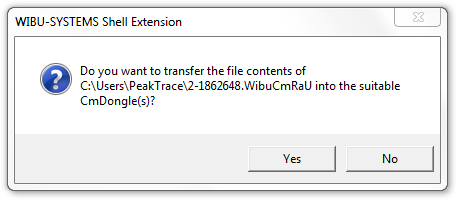
WIBU-SYSTEMS dialog asking whether to transfer the license update file to the CmStick, with Yes and No buttons

A common question is how to install the PeakTrace License Update File so that the license on your USB key is current. It is a very simple process.

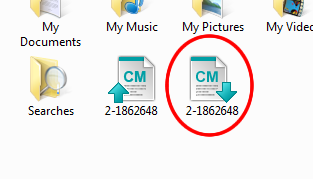
1. When you receive the update file (most likely by email) save it in a location you can access from the computer where the USB key is installed. Note that the update file will have a green down arrow (see the circled file in the figure below) and the file name extension will end in a U (e.g. 2-1862648.WibuCmRaU)

Folder showing the license request file (green up arrow) and the circled license update file (green down arrow)

2. Double click on the update file to install it. Press Yes.

WIBU-SYSTEMS dialog asking whether to transfer the license update file to the CmStick, with Yes and No buttons

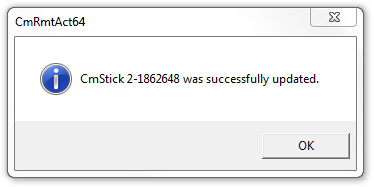
3. If the update installs correctly then you should see the below window. Press OK to finish.

Message confirming the CmStick was successfully updated, with an OK button

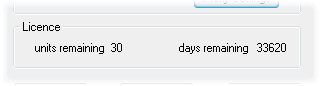
4. You can now check your new License and the days and units remaining on the bottom left hand side of the Options window of Auto PeakTrace.
PeakTrace License panel showing units remaining and days remaining

Filed Under: How-to, linux, PeakTrace, windows

How to Update the PeakTrace USB Key Time

May 13, 2024 By Daniel

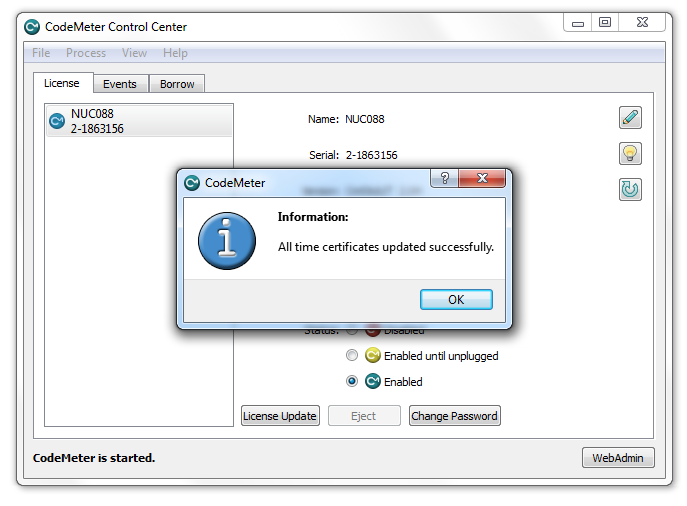
CodeMeter message confirming all time certificates were updated successfully

The PeakTrace USB Key contains an independent clock that must be kept in alignment with the system time of your computer. Normally this clock remains accurate for many months, but after a license or firmware upgrade it may need to be updated. The process to do this is simple:

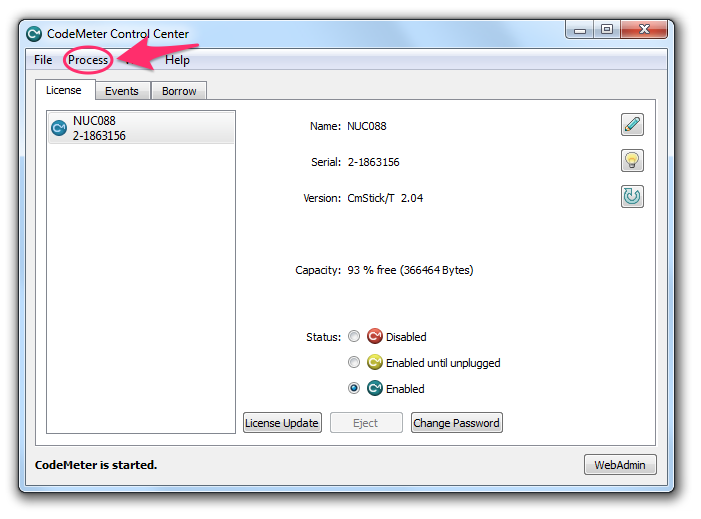
1. Open the CodeMeter Control Center from the Windows Start menu (search for “CodeMeter Control Center”). Please make sure that the USB Key supplied by Nucleics is plugged into your computer. This computer must have internet access. If the computer doesn’t have internet access then you can move the USB key to a computer with access (and CodeMeter installed) and do the time update on that computer. The updated time will be retained when you move the USB key back to the original computer.

CodeMeter Control Center with the Process menu circled

2. Click on the Process menu option.

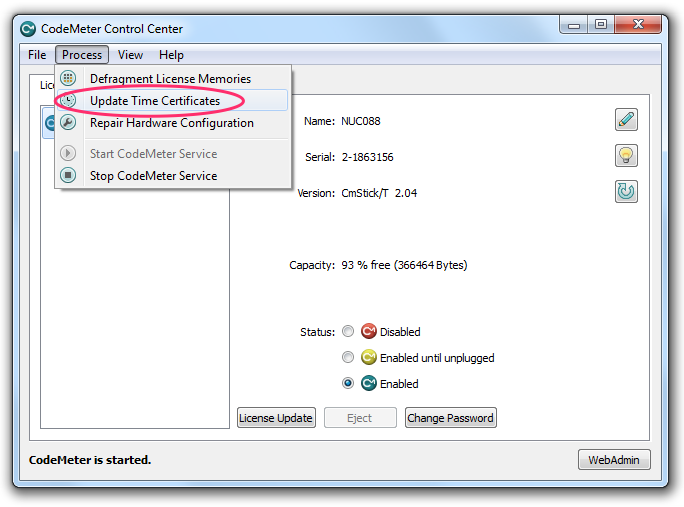
CodeMeter Control Center Process menu with Update Time Certificates circled

3. Click on Update Time Certificates.

CodeMeter message confirming all time certificates were updated successfully

4. Once the USB clock has been updated successfully, the window above will appear.

Linux & Windows command line

From the command line (Linux and Windows) you can also use the following command to update the time:

cmu --time-update

Filed Under: How-to, linux, PeakTrace, windows

Christmas New Year 2023

December 22, 2023 By Daniel

Stylized painting of a harbor at sunset, with city buildings behind yacht masts

Stylized painting of a harbor at sunset, with city buildings behind yacht masts

Nucleics will be closing for our annual break over the Christmas/New Year period. We will be closed from the 22nd December 2023 to the 2nd January 2024. We will try to respond to urgent requests, but our response times may be a little longer than usual.

Filed Under: news

Auto PeakTrace RP 6.961 Released

June 16, 2023 By Daniel

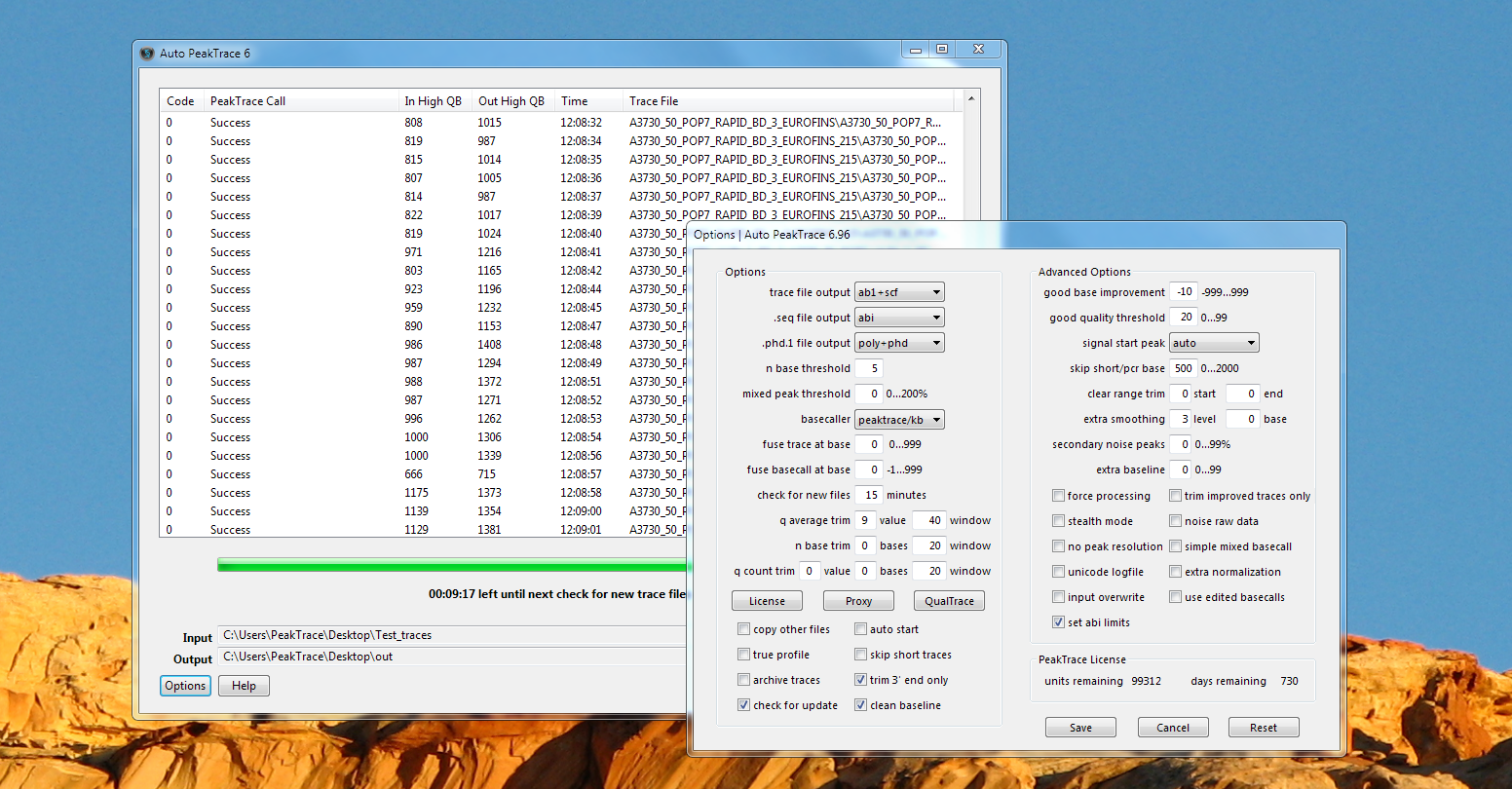
Auto PeakTrace 6 RP main window listing successfully processed traces, with the Options window for version 6.96 open
Auto PeakTrace RP 6.96

We have released Auto PeakTrace RP 6.961. This is a minor bug fix release that solves an issue with the archive function.

Auto PeakTrace 6 RP 6.96 can be downloaded from the PeakTrace RP Downloads page. If you do not know the password to access the PeakTrace RP Downloads page please contact us or your local supplier for the update.

This update is also available through the automatic update function.

Filed Under: New Release, news, PeakTrace RP, windows

Auto PeakTrace 6.961 Released

June 14, 2023 By Daniel

Auto PeakTrace 6 main window listing successfully processed 3730 traces, with the Options window for version 6.96 open
Auto PeakTrace 6.96

We have released Auto PeakTrace 6.961. This is a minor bug fix release that solves an issue with the archive function. This bug does not affect the command line versions of PeakTrace.

PeakTrace:Box customers can download the latest update from the PeakTrace:Box Downloads page. If you do not know the password to access the PeakTrace:Box Downloads page please contact us at support@nucleics.com or contact your local supplier for the update.

Filed Under: New Release, news, PeakTrace, windows

PeakTrace & QualTrace Pricing Changes

May 25, 2023 By Daniel

Long surf beach with rolling waves in a soft haze

Long surf beach with rolling waves in a soft haze

The price of PeakTrace, PeakTrace RP and QualTrace will increase by 20% from June 30 2023. Our PeakTrace and QualTrace prices have not changed since 2015, but in the current high inflation environment we have reluctantly had to increase our prices to continue to invest in improving our products and support new DNA sequencing instruments such as SeqStudio™ and SeqStudio Flex™.

Any orders placed and paid before June 30 2023 will receive the old price.

Filed Under: news, PeakTrace, PeakTrace RP, QualTrace

How to Upgrade to Auto PeakTrace 6

May 24, 2023 By Daniel

Auto PeakTrace Options Menu

Options window of Auto PeakTrace 6.95

Here are steps required to upgrade Auto PeakTrace. The links below will take you to the specific page(s) that explain how to do each step.

  1. Update your CodeMeter Runtime to the latest version (7.60a as of May 2023).
  2. Download the Auto PeakTrace 6 Installer from the Nucleics PeakTrace:Box Downloads page and install Auto PeakTrace 6. You will need a password to access the downloads page which will be supplied to you by Nucleics or your local supplier.
  3. You may need to reactivate your PeakTrace license online. If you need to do this you will be prompted to enter your PeakTrace Serial Number. The PeakTrace Serial Number is a 20 character long value broken into 5 blocks of 4 characters (i.e. XXXX-XXXX-XXXX-XXXX-XXXX). It is not the same as the PeakTrace License Code which is accessed from the Options window. This will have been supplied by Nucleics (or your local supplier) in the past. You should not need to do this step for versions 6.96 and higher.
  4. You should now be able to start and run Auto PeakTrace 6. It is a good idea to read through the help manual as there will likely have been many changes made and new features added.

Troubleshooting

  • If you get the error message “Auto PeakTrace 6 Key Invalid” then try updating the USB Key Time and the system time on the computer. These two times must be in agreement.
  • Try restarting the computer and check again.
  • Make sure that your operating system is one of those that are supported (Windows XP, Windows 7, Windows 8 or Windows 10 or Redhat/CentOS 6.9 or higher). Auto PeakTrace 6 has not been tested on Windows 11, but it should work.
  • If you are installing on Windows XP then the current CodeMeter runtime will not install. We provide an older version of CodeMeter (6.80) on the PeakTrace:Box Downloads page.
  • Make sure that you are not trying to run Auto PeakTrace 6 on a virtual machine. Doing so will lock your USB key and delete your license.
  • If Auto PeakTrace 6 won’t start at all, you may be missing one of the required Windows runtime libraries. You can download the missing Windows libraries from the Microsoft website.
  • If all these efforts fail, please email a cmDust file to Nucleics (or your local supplier) along with a newly generated PeakTrace License Request file. This will allow us to diagnose the problem with your license or system.

Filed Under: How-to, linux, PeakTrace, windows

In Depth: .poly file output

May 23, 2023 By Daniel

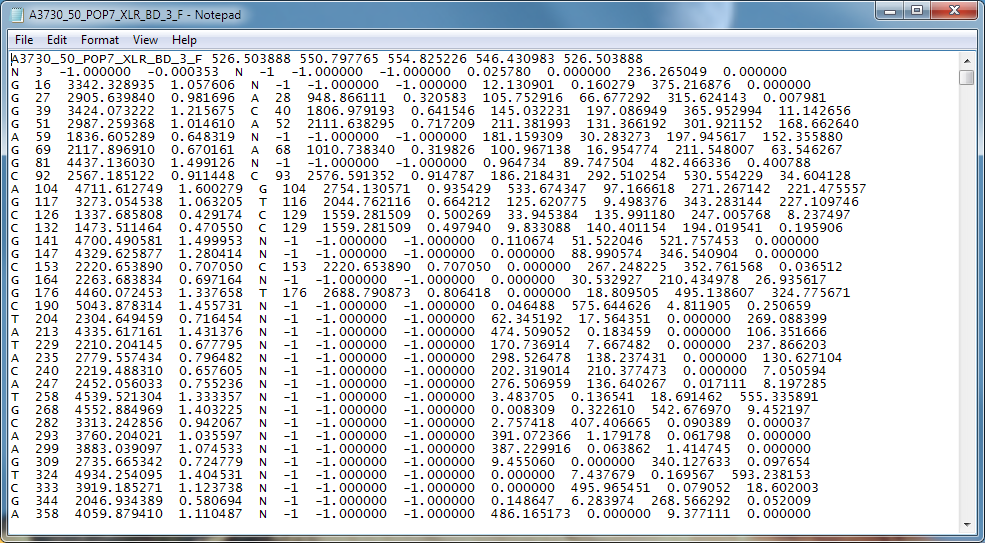
.poly file format

One of the new features of PeakTrace 6.96 is the ability to generate PHRED .poly files.

The .poly file has the name [filename].poly where [filename] is the name of the input .ab1 file. The first line of
the .poly file consists of a header line containing the file name, the smallest amplitude normalization factor, and the amplitude normalization factors for the A, C, G, and T channels.

On each line after the header line is the basecall, the position of the basecall (in scans), the area of the basecalled peak, the relative area of the basecalled peak, the uncalled base, the position of the uncalled base, the area of the uncalled base, the relative area of the uncalled base, and the amplitudes of the four
channels (A, C, G, T) at the position of the basecall. An example of a .poly file output is shown below.

.poly file format
.poly file format

The .poly file provides information on the relative height of each peak in the trace and can be useful for detecting polymorphisms or secondary peaks in traces.

To generate .poly files choose one of the two alternatives under .phd.1 file output option, poly or poly+phd.

Filed Under: In Depth, New Release, news, PeakTrace

Auto PeakTrace 6.96 & PeakTrace 6.96 Released

May 23, 2023 By Daniel

Auto PeakTrace 6 main window listing successfully processed 3730 traces, with the Options window for version 6.96 open
Auto PeakTrace 6.96

We have released Auto PeakTrace 6.96 and PeakTrace 6.96 for Windows & Linux. This is a major release that improves PeakTrace and is recommended for all users of the 6.952 or earlier series of PeakTrace. This release also includes updates and bug fixes for QualTrace.

The full list of changes include.

  • New Feature. .poly file output support.
  • New Feature. Support added for the following run conditions and instruments:
    • ABI 310
      50cm POP7 BigDye 3
      36cm POP4 Rapid BigDye 3
      30cm POP4 Rapid BigDye 3
    • ABI 3200 (SeqStudio)
      12kV POP1 BigDye 3
      9kV POP1 BigDye 3
      4kV POP1 BigDye 3
    • ABI 3500
      50cm POP6 BigDye 3
      50cm POP6 BigDye 1
    • ABI 3600 (SeqStudio Flex)
      RapidSeq50 POP7 BigDye 3
      FastSeq50 POP7 BigDye 3
  • Processing threads are limited to number of physical CPU cores.
  • If .scf is chosen as the file output the logfile will now show a filename with .scf and not an .ab1 extension.
  • Bug fixes

PeakTrace:Box customers can download the latest update from the PeakTrace:Box Downloads page.

If you do not know the password to access the PeakTrace:Box Downloads page please contact us at support@nucleics.com or contact your local supplier for the update.

Filed Under: linux, New Release, news, PeakTrace, QualTrace, windows

  • Page 1
  • Page 2
  • Page 3
  • Interim pages omitted …
  • Page 22
  • Go to Next Page »

Primary Sidebar

DNA Sequencing Help

We have added a guide on troubleshooting automated DNA sequencing problems.

DNA Sequencing Service Facilities Reviews

Please see our review of 325 DNA sequencing core facilities and commercial services for more information on selecting the right sequencing service for your needs.

QualTrace III Online

Try the free online version of the QualTrace DNA sequencing QC software and see how real time quality control tracking can improve your read lengths and lower sequencing failure rates.

Contact Details

email. information@nucleics.com
phone. +61 3 9016 9373
  • home
  • peaktrace
  • software & reagents
  • forum
  • tools
  • services
  • support
  • about

Nucleics

Sanger Seqencing Software

©Nucleics 1999 - 2026