• Skip to main content
  • Skip to primary sidebar

Nucleics

  • PeakTrace
    • About PeakTrace
    • PeakTrace Online
    • PeakTrace Online Pro
    • PeakTrace 6
    • PeakTrace:Box
    • PeakTrace RP
    • PeakTrace for Chromas
    • Buy PeakTrace
    • Why use PeakTrace?
    • Validation of PeakTrace
    • PeakTrace FAQ
    • PeakTrace In Depth
  • DNA Sequencing Products
    • PeakTrace Basecaller
    • PeakTrace:Box
    • PeakTrace RP
    • PeakTrace for Chromas
    • QualTrace
    • LongTrace
    • CounterTrace
    • dLUTE SEQ
    • UniSeq
    • ASIN
  • Support & Services
    • PeakTrace Online Pro Registration
    • QualTrace III Online
    • DNA Sequencing Troubleshooting Guide
    • PeakTrace RP Downloads
    • PeakTrace:Box Downloads
    • Trace Viewers
    • User Manuals
    • Help Guides
      • How to Install Auto PeakTrace 6
      • How to Upgrade to Auto PeakTrace 6
      • How to Update the PeakTrace License on Linux
      • How to Generate a cmDust File
      • Online Activation of Auto PeakTrace 6
      • Auto PeakTrace 6 Online Activation Guide
      • DNA Sequencing Protocols
        • DNA Sequencing Protocol Tips
        • Exonuclease I – Shrimp Alkaline Phosphatase Clean Up of PCR Products
        • Tris EDTA DNA Sequencing Resuspension Buffer
        • DNA Sequencing Reaction Clean-up using Phenol & Butanol
    • DNA Sequencing Service Reviews
    • Software Downloads
    • MSDS
    • Services
      • Genomics Sequencing
      • Bioinformatics
  • Forum
    • Register
    • Login
    • PeakTrace Basecaller Forum
    • PeakTrace:Box Forum
    • Auto PeakTrace RP Forum
    • QualTrace Forum
    • DNA Sequencing Forum
    • DNA Sequencing Software
    • PCR Forum
    • DNA Isolation Forum
    • LongTrace Forum
    • dLUTE SEQ Forum
  • About
    • Contact
    • News
    • Jobs
    • Nucleics Privacy Policy
Buy PeakTrace

Harrison Campbell

In Depth: N Base Trim

September 24, 2019 By Harrison Campbell

The N Base Trim option allows users to trim the 3′ or 5′ end of a trace based on the number of N base calls in a selected window size.

For example, if you were  to use the values of 5N bases in a window of 20 bases, PeakTrace would use a sliding window of 20 bases to scan the trace from each end and when it finds more than 5 N’s in the window the trace would be clipped. Below is an example of the N Base Trim in action. In Figure 1 a window of 20 bases is shown (colored) and within this window only 6 N bases are present, however as the window slides a position to the right a 7th N base enters the window and the trace is trimmed and shown in Figure 2.

Chromatogram from bases 950 to 1000, with a highlighted 20-base window containing several N bases
Figure 1. A region of a trace containing multiple N bases. The sliding window of 20 bases is colored.
The same chromatogram trimmed so it ends at about base 986
Figure 2. N Base Trimming with 7 N’s in a sliding window of 20 selected.

The N base trimming option is compatible with the set ABI limits option, which will perform a soft or “virtual” trim of low quality end regions instead of a hard trim. Combined with the N Base Threshold option users can select the minimum Q value that will determine an N base being called allowing full control over the trimming.

If you have untrimmed traces that have already been processed through PeakTrace and you would like to trim them without being charged more units, you can perform post-process trimming by selecting abi/kb as the basecaller and choosing the appropriate trimming method. Remember to turn off the clean baseline, extra baseline and extra normalization options or else you will be charged for trimming the traces.

Filed Under: In Depth, PeakTrace, PeakTrace RP

In Depth: Q Count Trim

May 13, 2019 By Harrison Campbell

Close-up of the trimmed trace end near base 700, where the quality bars become shorter

The q count trim option allows end trimming of the low quality regions of the basecall using a count of q score below a set threshold using a window of variable size. This trim option is a combination of 3 parameters; a quality score threshold, the number of bases below this threshold, and the size of the sliding window used over which the count is performed.

The basecalls are scanned from both ends using a sliding window of the selected size. The trace is trimmed when fewer than the selected number of bases have a quality score below the chosen value in the window. For example if the Q value is set to 20, the bases set to 4, and the window size set to 20, the trace would be trimmed from the 5′ and 3′ ends when a window of 20 bases contains fewer than 4 bases with a Q score below 20.

Below are some examples of the q count trimming option.

Figure 1. An example of an untrimmed trace.
Close-up of the trimmed trace end near base 700, where the quality bars become shorter
Figure 2. The same trace trimmed with Q Count parameters: Q value 36, 10 bases and a sliding window of 20.

From Figure 1 & 2 we can see a region with mid range Q scores starting from base 706. Once Q Count Trimming was applied it trimmed the trace at this region as it contained more than 10 bases with a quality value of 35 or less in a window of 20 bases.

The q average trimming option is compatible with the set abi limits option, which will perform a soft or “virtual” trim of low quality end regions which shows the trimmed bases as gray when viewed in ABI’s Trace Viewer software.

If you have untrimmed traces that have already been processed through PeakTrace and you would like to trim them without being charged more units, you can perform post-process trimming by selecting abi/kb as the basecaller and choosing the appropriate trimming method. Remember to turn off the clean baseline, extra baseline and extra normalization options or you may be charged for trimming the traces.

Filed Under: In Depth, PeakTrace, PeakTrace RP

In Depth: Trim Improved Traces Only

March 1, 2019 By Harrison Campbell

PeakTrace 6 allows users to trim traces based on 5 parameters, Q average, N count, Q count, PCR base and Clear Range trimming. These settings allow the removal of unwanted low quality data, particularly on the 3′ end.

The trim improved traces only option allows the user to decide if they want PeakTrace trimming options to act upon all traces or just those traces basecalled by PeakTrace. This setting is useful if you want traces that were skipped short or below the good improvement threshold to be output in their original condition without trimming.

Chromatogram from bases 255 to 304, ending where the low-quality bases were removed
Figure 1. An example of a trace that was skipped short, with Trim improved traces only off. The low quality bases after base 304 have been removed.
Chromatogram continuing past base 304 into low-quality peaks
Figure 2. The same trace but with trim improved traces only on. The low quality bases after base 304 have been retained.

Conclusion

The trimming functions of PeakTrace are useful in removing unwanted poor quality data from the end of a trace. The default settings of PeakTrace assume that you wish to apply the same trim settings to traces improved by PeakTrace and those not (i.e. where the original KB basecall is output). The use of trim improve traces only allows the PeakTrace improved traces to be trimmed leaving the KB basecalled traces untrimmed.

It is not advised to use the trim improved traces only setting under most circumstances.

Pitfalls With Using Trim Improved Traces Only

  1. Users will be given a mix of traces some with long regions of low quality bases and some without low quality regions. Such mixing will result in users questioning the quality of their data.
  2. Use of the trim improved traces only setting affects the good base improvement measurement. It is very common for the KB basecaller to falsely assign high quality bases in regions of low quality. If not trimmed, these bases will be counted towards the total high quality bases in the KB input file. This can result in some PeakTrace improved traces to fall below the required good base improvement threshold. The end result is fewer traces that can be improved by PeakTrace being output.

Filed Under: In Depth, PeakTrace, PeakTrace RP

In Depth: Clear Range Trimming

January 8, 2019 By Harrison Campbell

Two views of an untrimmed trace: the start, with N basecalls and low peaks before about base 20, and the region from bases 215 to 265

The Clear Range Trim option allows you to select the number of bases you want to trim from the start and end of a trace.

Through the use of 2 value boxes users can choose how many bases they want to trim from the 5′ end of a trace and how long the resulting sequence will be. This trimming option is often not the best method to trim poor quality regions of a trace, as it has the potential to trim regions of high quality data. Other methods such as Q average trimming remove only areas of poor quality data.

Figure 1 and Figure 3 show the start and mid regions of a trace. Figure 2 shows trimming of the first 30 bases after a clear range of 30 and 230 was selected. Figure 4 shows the same trace at the ending region after  a clear range of 30 and 230. Notice that because the first 30 bases have been removed a frame shift has occurred, what was once base 260 is now base 230.

Start of a trace with N basecalls and low quality bars before about base 20
Figure 1. The starting region of a trace.
Close-up of the trimmed trace start, renumbered from base 1
Figure 2. The same trace after clear range 30, 230.
Chromatogram from bases 215 to 265
Figure 3. The mid region of a trace.
The same region, now numbered 185 to 230 after the first 30 bases were removed
Figure 4. The same trace after clear range 30,230.

If you have untrimmed traces that have already been processed through PeakTrace and you would like to trim them without being charged, you can perform post-process trimming by selecting abi/kb as the basecaller and choosing the appropriate trimming method. Remember to turn off the clean baseline, extra baseline and extra normalization options or else you will be charged.

The clear range trimming option is compatible with the set ABI limits, which will perform a soft or “virtual” trim when viewed in ABI’s sequencing analysis or sequence scanner.

Filed Under: In Depth, PeakTrace, PeakTrace RP

In Depth: Fuse Trace and Fuse Basecall

December 21, 2018 By Harrison Campbell

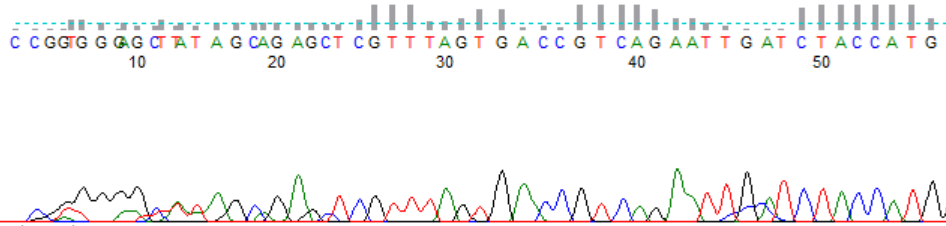
KB-processed trace start with low, noisy peaks before base 25

The PeakTrace 6 fuse trace at base and fuse basecall at base options allow the combination of 2 basecallers in one basecall to gain the best from both.

Fuse Trace at Base

The fuse trace at base option allows you to enter an approximate position that the original KB trace will be fused with the PeakTrace output. This fuses both the basecall sequence and the processed peaks. The position is only an approximation as PeakTrace will only fuse traces where it finds enough similarities between the basecalls for a smooth transition. We recommend using the lowest value (1).

The best way to see how fuse trace at base works is from the following examples.

KB-processed trace start with N basecalls and broad, overlapping peaks
Figure 1. An example of an original KB processed trace.
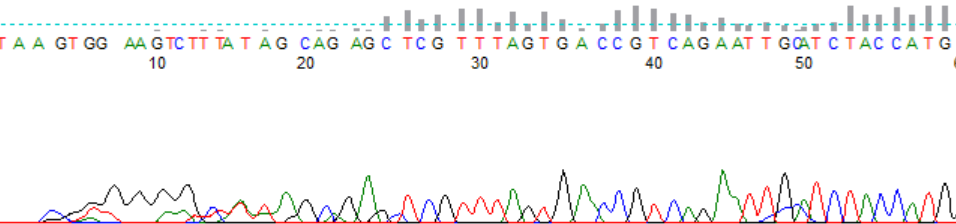
PeakTrace-processed trace start with no fuse trace, showing a sharp artifact peak at the start
Figure 2. The same trace processed through PeakTrace with no fuse trace selected.
PeakTrace-processed trace start with fuse trace at position 1, keeping the original broad early peaks
Figure 3. The same trace processed through PeakTrace with fuse trace selected at position 1.

The starting region of DNA sequences can be difficult to process and basecall. Figure 1 shows KB’s ability to process and basecall the starting region and Figure 2 shows PeakTrace’s ability to process the starting region. KB is better able to process this early region. Through the use of the fuse trace option as seen in Figure 3 you can combine KB’s processing at the start with PeakTrace’s output at the end.

An added feature of the fuse trace at base option is to use KB’s better processing of dye blobs early in a trace with extra baseline. If significant dye blobs are present, setting the fuse trace at base position past the region affected can help remove dye blob problems in code. The In Depth article on extra baseline explains how best to use these two settings together.

Fuse Basecall at Base

The fuse basecall at base option sets an approximate position in the sequence where the PeakTrace basecall sequence will be fused with the original KB basecall sequence. This option overrides the fuse trace at base setting and will result in PeakTrace processed peaks. Fuse basecall at base is advantageous if you wish to have the KB sequence combined with the superior trace processing of PeakTrace. This setting was improved with the release of PeakTrace 6.63 to enhance alignment of peak and basecall locations.

KB-processed trace start with low, noisy peaks before base 25
Figure 4. KB processed trace.
PeakTrace-processed trace start with PeakTrace basecalls throughout
Figure 5. The same sample processed through PeakTrace without basecall fuse at base.
PeakTrace-processed trace start with the KB basecalls kept for the first 30 bases
Figure 6. The same trace processed through PeakTrace with fuse basecall at base set to 30.

Figure 5 shows a trace processed with PeakTrace and no fuse settings. Figure 6 shows the same trace again processed with PeakTrace, however the basecall sequence and associated quality values have been carried over from the original trace in Figure 4. Due to the inherent difficulties of aligning a PeakTrace processed trace with a basecall sequence from KB, slight peak translocations can occur where the KB basecall may not align to the peaks from PeakTrace.

Update. The basecalling and trace processing have improved significantly in PeakTrace 6.90 and higher and so it is recommended that fuse trace at base or fuse basecall at base are no longer used.

Filed Under: In Depth, PeakTrace, PeakTrace RP

In Depth: Skipping Short Traces

December 19, 2018 By Harrison Campbell

The skip short traces option is a useful option in PeakTrace to skip over the reads from short DNA fragments. As the improvement in basecall quality for shorter traces can be minimal, you may wish to skip over them and save units. Using this setting can avoid manually sorting traces before being processed through PeakTrace.

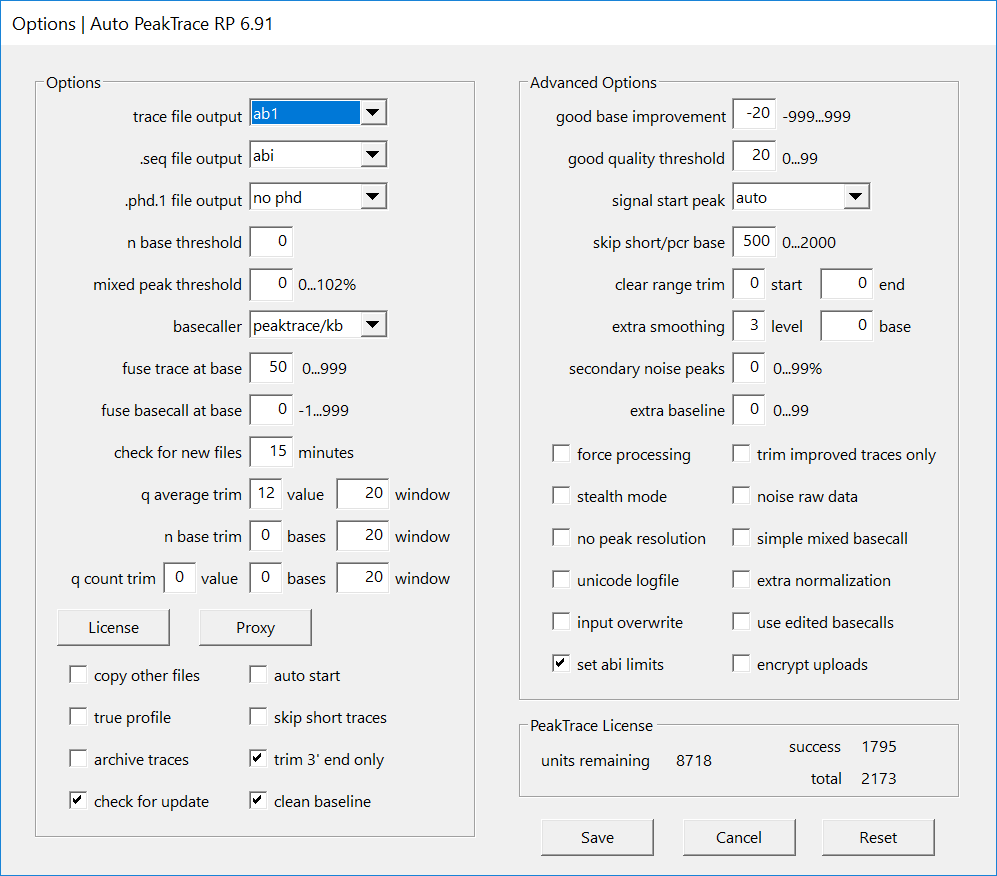
To enable the skip short check the skip short traces option. The read length at which a short trace is defined can be set anywhere between 0 and 500 bp and is entered in the skip short/pcr base field of the Advanced Options (Figure 1).

Auto PeakTrace RP Options
Figure 1. Auto PeakTrace RP Options

If a value over 500 is entered in the skip short/pcr base field then the skip short traces function will be turned off, enabling the PCR trim function. Lowering the value below 500 will cause fewer traces to be considered short traces and hence more files will be processed by PeakTrace.

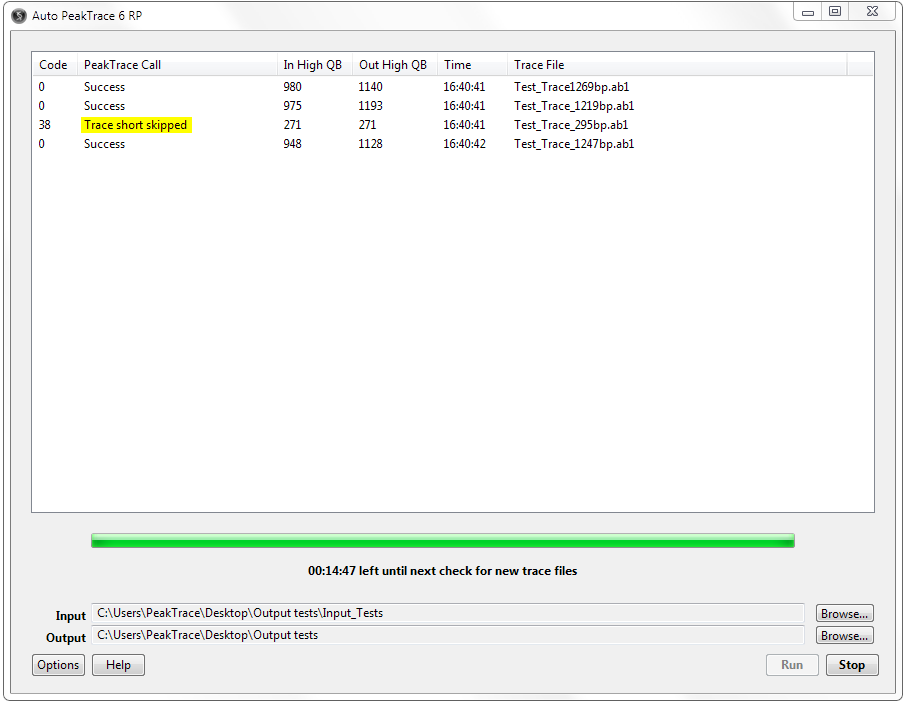
Figure 1. Short traces will result in 'trace short skipped' call being issued shown in yellow.
Figure 2. Short traces will result in ‘trace short skipped’ call output (yellow).

It is possible to improve the appearance of the short skipped traces by selecting the peaktrace/kb basecaller option and using either clean baseline, extra baseline or extra normalization.

Any trimming options that are activated in PeakTrace will still be applied to the Skip Short trace, if you do not wish trimming to be applied to skipped traces then select the Trim Improved Traces Only option.


Filed Under: In Depth, PeakTrace

In Depth: No Peak Resolution

December 17, 2018 By Harrison Campbell

An unfortunate side effect of a basecaller’s ability to process peaks is that the processing can suppress or raise the secondary peak signal and with it alter the recognition of polymorphic sites.

The PeakTrace no peak resolution setting outputs peaks that have been minimally processed and which are as close to the true raw data as possible while being usable. This setting allows users to spot true relative peak differences or production problems.

The use of the no peak resolution can be best seen by looking at the following polymorphic region.

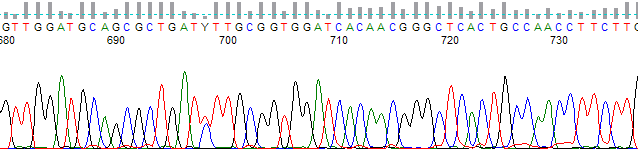
Raw data from a polymorphic site, with a small blue C peak under the red T peaks
Figure 1. An example of raw data from a polymorphic site. Note the secondary (blue) C peak under the primary 4 T peaks (red) in the middle of the window. The C peak is 75% of the height of the second T peak.


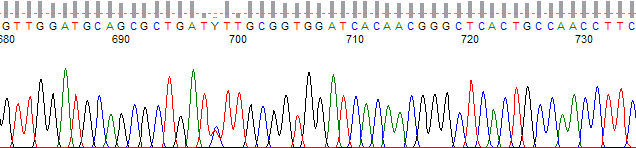
KB-processed chromatogram from bases 680 to 735, with a Y basecall at position 698
Figure 2. The same trace as Figure 1 processed using the KB Basecaller. Note the primary and secondary peak at position 698. The C peak is 95% of the height of the second T peak.


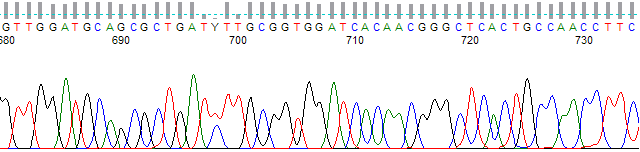
PeakTrace-processed chromatogram from bases 680 to 735, with a Y basecall at position 698
Figure 3. The same trace as Figure 1 processed using standard PeakTrace settings. Note the primary and secondary peak at position 698. The C peak is 105% of the height of the second T peak.


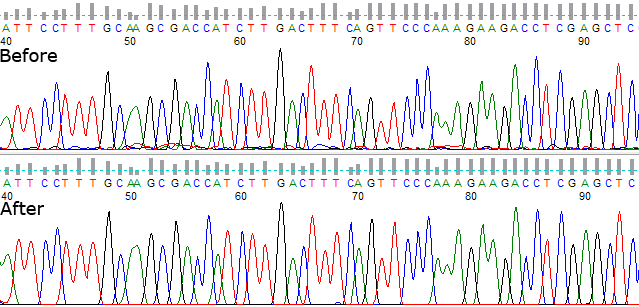
The same region processed with no peak resolution, with broader peaks and a smaller secondary C peak at position 698
Figure 4. The same trace processed using PeakTrace with No Peak Resolution. Note the primary and secondary peak at position 698. The C peak is 75% of the height of the second T peak. This matches the relative signal heights seen in the raw data.

From Figure 2 and 3 it is clear both KB and PeakTrace process the raw data seen in Figure 1 differently, but it is also clear that neither of them are identical to the true raw peak signal seen in Figure 1. Figure 4 is the most accurate representation of what we are seeing in the raw data channel through the use of the no peak resolution option. This is important when further downstream analysis of polymorphic sites and peaks relies on the accurate signal intensity.

The no peak resolution version of the .ab1 file can be output at the same time as the standard PeakTrace version by selecting the ab1+np trace file output option. This avoids the need to process a .ab1 file twice to get both versions.

If you plan to use the advanced setting simple mixed basecall it is strongly advised to use no peak resolution setting.

Update. As of PeakTrace 6.92 the relative peak heights seen when using standard PeakTrace settings more closely match the relative peak heights seen in the raw channel for secondary peaks.


Filed Under: In Depth, PeakTrace, PeakTrace RP

In Depth: PeakTrace Basecalling with KB Fallback

December 8, 2018 By Harrison Campbell

In most scenarios the usage of PeakTrace will lead to increasing the number of high quality bases in the basecall. There are however a few factors that can  limit PeakTrace’s ability to improve a .ab1 trace file, such as:

  • Length of read. Shorter reads will already have been basecalled near perfectly by KB so any improvement will be minimal.
  • Raw channel signal. If the signal is at noise level (just detector noise) it may not be possible to improve over KB.
  • Failed reactions. If a sequencing reaction has failed (no data to process) not even PeakTrace can salvage it.
  • Mixed trace signal. DNA contamination (two or more templates or priming sites) cannot be removed through PeakTrace processing.

If  PeakTrace encounters a trace it can’t improve there are two ways to deal with the original file. The first involves just copying the .ab1 file to the output folder with no attempts at improving the file, or the appearance of the trace can be improved through KB fallback processing with the Clean Baseline, Extra Baseline and Extra Normalization options.

Chromatogram from bases 40 to 95 before and after PeakTrace processing

If PeakTrace can’t improve the basecall sequence but you want to improve the original input file select PeakTrace/KB basecaller.

Basecaller drop-down set to peaktrace/kb
Figure 1. PeakTrace basecalling with KB fallback.

If PeakTrace can’t improve the basecall sequence and you do not wish to improve the original file select PeakTrace basecaller.

Basecaller drop-down set to peaktrace
Figure 2. PeakTrace basecalling with no fallback.

Be aware that improving a file through the use of the Clean Baseline, Extra Baseline or Extra Normalization options will use a processing unit even if PeakTrace hasn’t basecalled the file.

Filed Under: In Depth, PeakTrace, PeakTrace RP

Primary Sidebar

DNA Sequencing Help

We have added a guide on troubleshooting automated DNA sequencing problems.

DNA Sequencing Service Facilities Reviews

Please see our review of 325 DNA sequencing core facilities and commercial services for more information on selecting the right sequencing service for your needs.

QualTrace III Online

Try the free online version of the QualTrace DNA sequencing QC software and see how real time quality control tracking can improve your read lengths and lower sequencing failure rates.

Contact Details

email. information@nucleics.com
phone. +61 3 9016 9373
  • home
  • peaktrace
  • software & reagents
  • forum
  • tools
  • services
  • support
  • about

Nucleics

Sanger Seqencing Software

©Nucleics 1999 - 2026